
WordPress SEO Guide
WordPress is a Content Management System (CMS). It is based on PHP code and provides a way to manage content without any technical knowledge. This allows you to build a fully functional website even without any coding knowledge.
In this “WordPress SEO Guide,” we’ll start with the basics. You’ll learn everything you need to know to set up your WordPress website correctly and optimize it for search engines. We’ll walk you through our process and take you behind the scenes.
There are several ways to set up a WordPress site. Depending on your technical knowledge or interest, you can choose to install it manually or leave the technical work to others.
With WordPress.com, you use a centralized system. You pay a monthly fee for your WordPress environment, which includes hosting and a domain name. There are several drawbacks to this approach. We do not recommend this method.
Disadvantages: unnecessary costs for plug-ins, overly expensive hosting, fewer customization options (it is not possible to modify the code).
Are you opting for a WordPress.org installation? Then you have complete freedom. You download the files for a WordPress site and then install them on your own hosting. You upload those files to your server and connect your database to the system. For a beginner, this can often seem overwhelming, but after a while, these are simple steps.
Tip
Most hosting providers offer an option that automatically installs WordPress. This way, you’re essentially working with the WordPress.org version without having to set up any files or databases.
At Digital Climax, we call that an automatic installation.
WordPress offers you a tremendous amount of freedom. With themes and plugins, you can do it all yourself. Need even more customization? Then you can get started writing code yourself.
In terms of cost-benefit, WordPress is one of the most interesting platforms. It gives you a solid foundation to build on. How much extra work you put into it is entirely up to you.
If you have a web developer build a website for you today and you’re not satisfied, you can easily switch to another one. A website built from scratch (without a CMS) is often the developer’s intellectual property. You’re, so to speak, tied to that developer, which often results in high costs and dissatisfaction.
Tip
Always choose a CMS, make sure you host it yourself, and ensure you always have access to the database and files. That way, you stay in control and avoid a lot of problems down the road. Believe me, I run into them all the time. In 9 out of 10 cases, those problems come with unnecessary costs.
WordPress isn’t the holy grail. There are plenty of excellent alternative CMS systems. Depending on your needs, a WordPress environment might not be stable enough. Think of a massive online store with tens of thousands of products and a lot of customization… Always discuss your situation with someone who knows what they’re talking about.
The Disadvantages of WordPress
Although WordPress is a powerful system, the basic version lacks virtually all SEO features. That’s why it’s practically mandatory to use an SEO plugin. This ensures that you can, for example, set your meta title.
Choose an independent party
If your developer specializes in WordPress, they’ll be less likely to offer independent advice and more likely to steer you in a certain direction. After all, that’s in the best interest of their own portfolio.
You can customize and tailor a lot of things using plugins and additional code. However, there are limitations here as well. You can install as many plugins as you want on your website, though this won’t improve your website’s performance.
On average, we install between 5 and 10 plug-ins on a website. Try to limit that number to the absolute minimum.
Also, choose a lightweight theme. This means that the code is well-structured and doesn’t make any unnecessary database calls, for example.
At our SEO agency, we call that an automated installation.
Please note: things are about to get a little technical here.
WordPress is based on PHP, a programming language used to write code. The site also uses HTML (to structure your page) and CSS (to define the layout of your page).
In some cases, we also see JavaScript being used. For SEO purposes, it’s best to avoid this as much as possible. Search engines have a hard time understanding exactly what JavaScript does. Even if they do understand it, it takes many times longer. That’s detrimental to your crawl budget.
HTML and CSS do not contain any logic. You use them solely to display elements. PHP, on the other hand, does contain logic. This allows you to perform calculations and communicate with your database.
Essentially, it’s just a whole bunch of small files that are connected to each other. That makes it possible for them to communicate with each other.
In addition, they ensure that you don’t have to work directly in the code, but can instead work on your content and website in a user-friendly way.
Why is this important?
Understanding how WordPress works will help you better understand what is and isn’t possible as you go through this guide. Above all, remember that JavaScript isn’t good for search engines, and that a WordPress website is nothing more or less than a collection of files that communicate with each other.
Is your WordPress website already up and running, and do you want to get started with SEO on your own? If so, it’s helpful to know which quick wins you can use to improve your rankings.
Our SEO scan gives you exactly that. We’ll take a look at your website and provide you with an overview.
As an SEO agency, we help clients like you reach the top of Google.
We’d love to put our expertise as SEO specialists to work for your business.
A permalink is the visible URL that takes you to a page. By default, this is not set up to be SEO-friendly. You should configure the settings as shown in the example below:
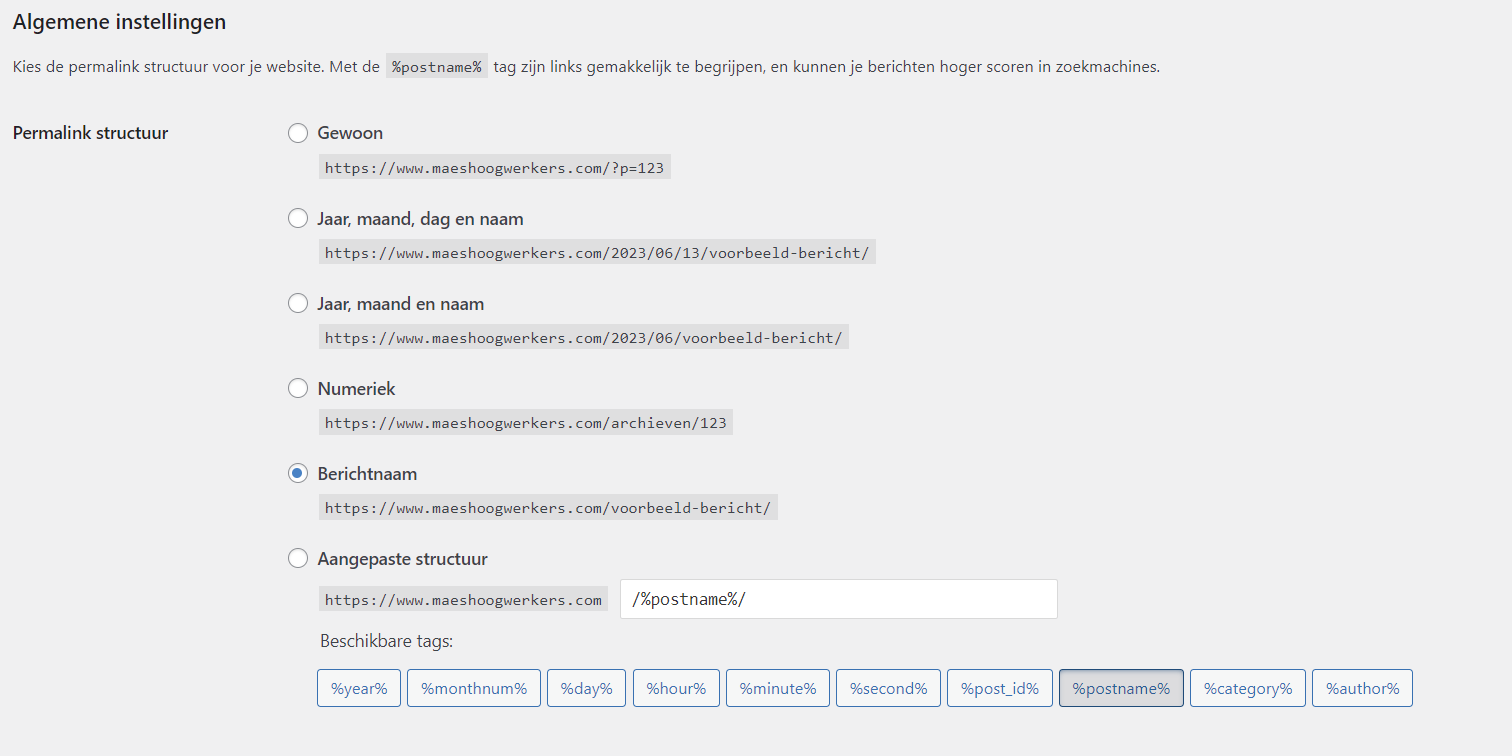
Also, use directories in your URLs. In the early days of the web, your pages were stored in directories. A page would be located in a directory named “sub.” To display that page, you would call up the following URL: domain.be/sub/page.
Logically, you should place related pages in the same folder. Search engines follow that logic to understand how your website is structured.
Do you want to link pages together? That starts with the structure of your URL. And that brings us back to your website architecture. It’s essential to have a clear understanding of this before you start building your WordPress website.
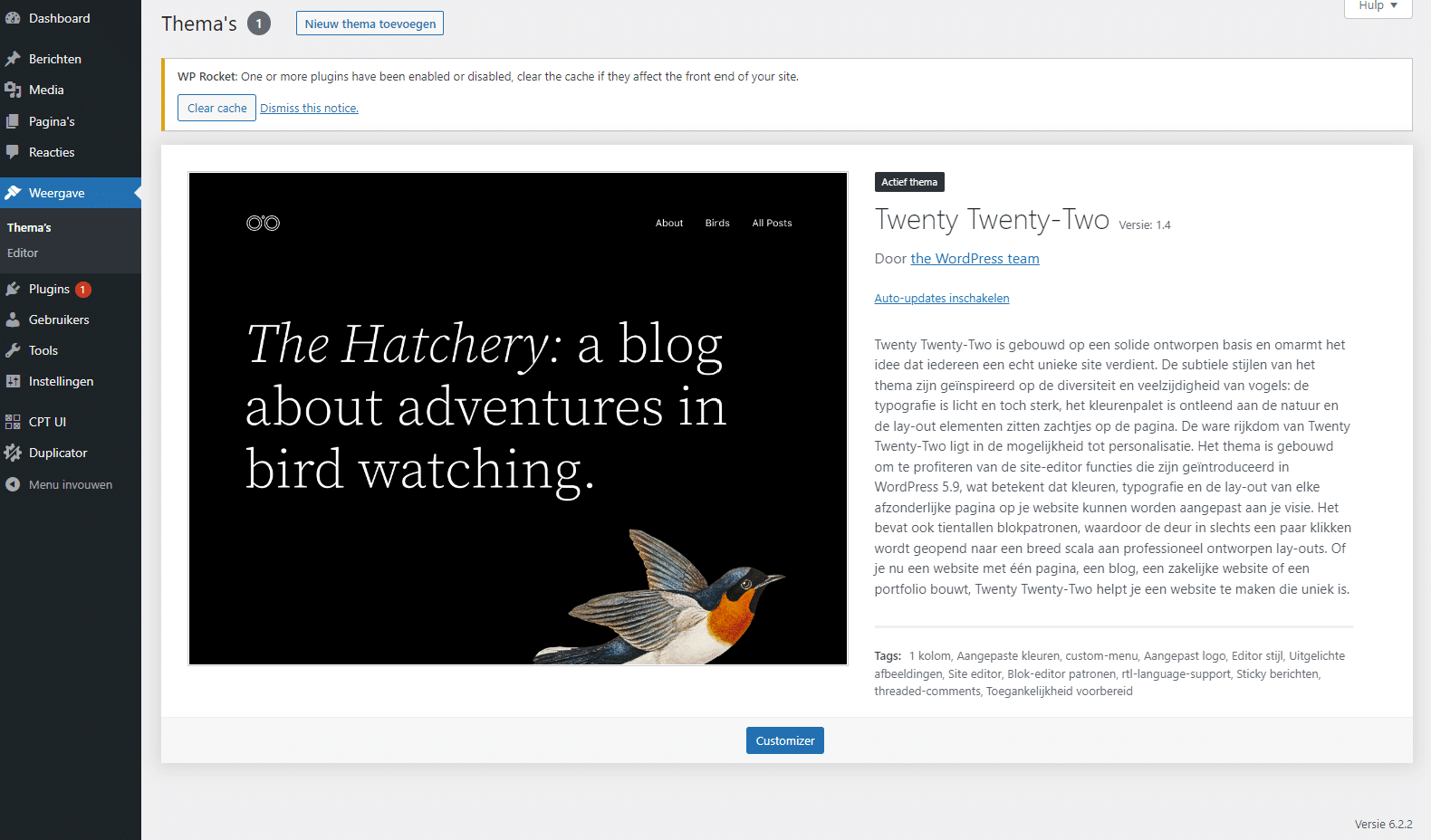
WordPress is a blogging platform. With a theme, you can focus on the content, while the theme handles the technical aspects.
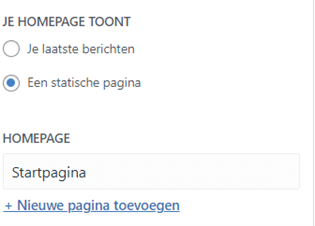
Would you like to use your site as a website? If so, change your homepage settings to a static page.
You can do this under: Display > Customizer > Homepage settings
One of the biggest drawbacks of WordPress, in my experience? The rigid structure with “www” and “non-www” versions.
When you set up your website, you configure a website URL. That URL is hard-coded into your site, and if you change it without knowing what you’re doing, you might as well be opening Pandora’s box.
When you launch a new website, it’s best to use the same structure as before. There’s no SEO advantage or disadvantage to choosing “www” or the reverse.
Make your choice and stick with it.
In recent years, developers have increasingly been opting for the non-www version.
Specifically:
www version: www.domein.be
non-www version: domain.be
Depending on your settings, you will be redirected to the option you selected.
Doesn’t that look right? If so, visitors to the “incorrect” version will see a 404 error message.
So, not ideal.
An XML sitemap helps search engines get a complete picture of your website. By default, WordPress does not generate an XML sitemap, even though it is an essential part of your website.
There are two ways to solve this:
- The easiest way (both now and in the future) is to use an SEO plugin. It generates an XML sitemap that will be automatically updated in the future.
- You can also generate a sitemap manually. It’s usually done automatically (just enter your website and you’re done), but you’ll need to update the sitemap every time you make a change.
You’ll need to upload your sitemap manually via your FTP environment, which is a bit more technical.
Tip
Just because you don’t have a sitemap or a page isn’t included in your sitemap doesn’t mean Google will never index that page. A sitemap is purely for informational purposes and helps search engines find all your pages.
A well-designed website architecture that makes use of internal links is much more effective than a sitemap.
Structured data is additional code that helps search engines understand the content on your page and website. It’s incredibly useful—especially because it follows a universal format that works worldwide. It makes it extremely easy for search engines to understand what you mean.
There are three ways to add structured data:
An SEO plugin
Writing the code manually
Your website’s appearance and performance are determined by a theme.
The quality factors of a good theme:
- Clean and concise code
- Customizable
- Evolves alongside the web and WordPress
These days, page builders are a popular option. They are themes (or plugins) that let you customize the layout and structure of your website yourself.
Whereas in the past you would choose a nice theme that determined the layout of your site, today you have more freedom. You basically start with a blank slate and build it yourself.
Are we fans of this? Yes, we definitely are!
We do want to point out, however, that greater freedom also means a greater margin for error. So make sure you know what you’re getting into.
Actually, this title shouldn’t even be necessary. A website MUST be accessible on phones and tablets. Yet we still see it happen far too often: a website is designed entirely for computers, and the mobile aspect seems to have been forgotten.
Most of your visitors browse on mobile devices. (Strictly speaking, this depends on the niche, but you can assume that’s the case.)
Make sure they, too, see an optimized website.
WordPress is based on post types. These are the types of posts you can create. For example, every WordPress installation comes with a “blog post” type by default.
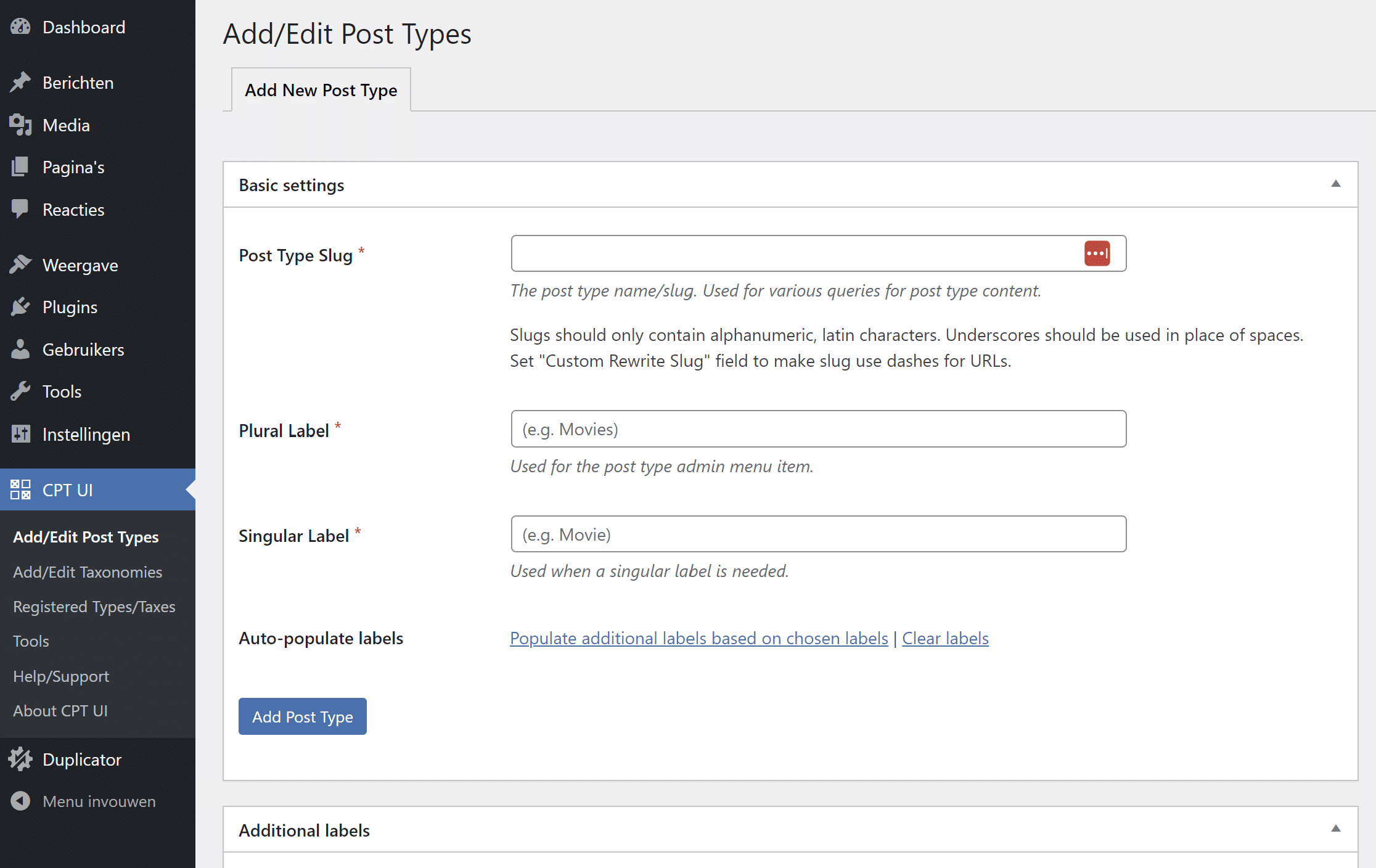
It’s perfectly possible to add your own post types. Note: You’ll need an additional plugin to add them. In this example, we’ll use the “Custom Post Type UI” plugin.
Here are a few very specific scenarios in which we plan to introduce additional post types:
- Jobs
- Projects/References
- Products (WooCommerce does this by default)
This allows you to clearly distinguish between the different types of content on your website. It also has benefits when it comes to (automatic) structured data.
Here’s how to automatically add the correct structured data to job postings.
Learn more about SEO for recruiting.
Note: Make sure your custom post types are also included in your sitemap. In many SEO plugins, you’ll need to add this yourself.
You can set categories and tags for each post type (including the default one). This allows you to link related posts together. That way, you can create overviews and help your visitors navigate your site.
Using Categories & Tags Correctly for Search Engines
Categories and tags are essential to your SEO strategy. Be sure to include them when designing your website architecture.
Take the simplest example: an online store
- You have quite a few pairs of lace-up shoes.
- A shoe is a product (so it falls under the “products” category).
- Put all your shoes in the “shoes” category.
- In addition, you can use the “shoelaces” tag to further distinguish the content.
- With properly configured products, you can now create additional landing pages for search engines.
- Each landing page targets one keyword and explores it in detail. Of course, you should include synonyms as well.
Pay close attention to your website architecture here. Too many categories or tags can lead to duplicate content, which we want to avoid at all costs.
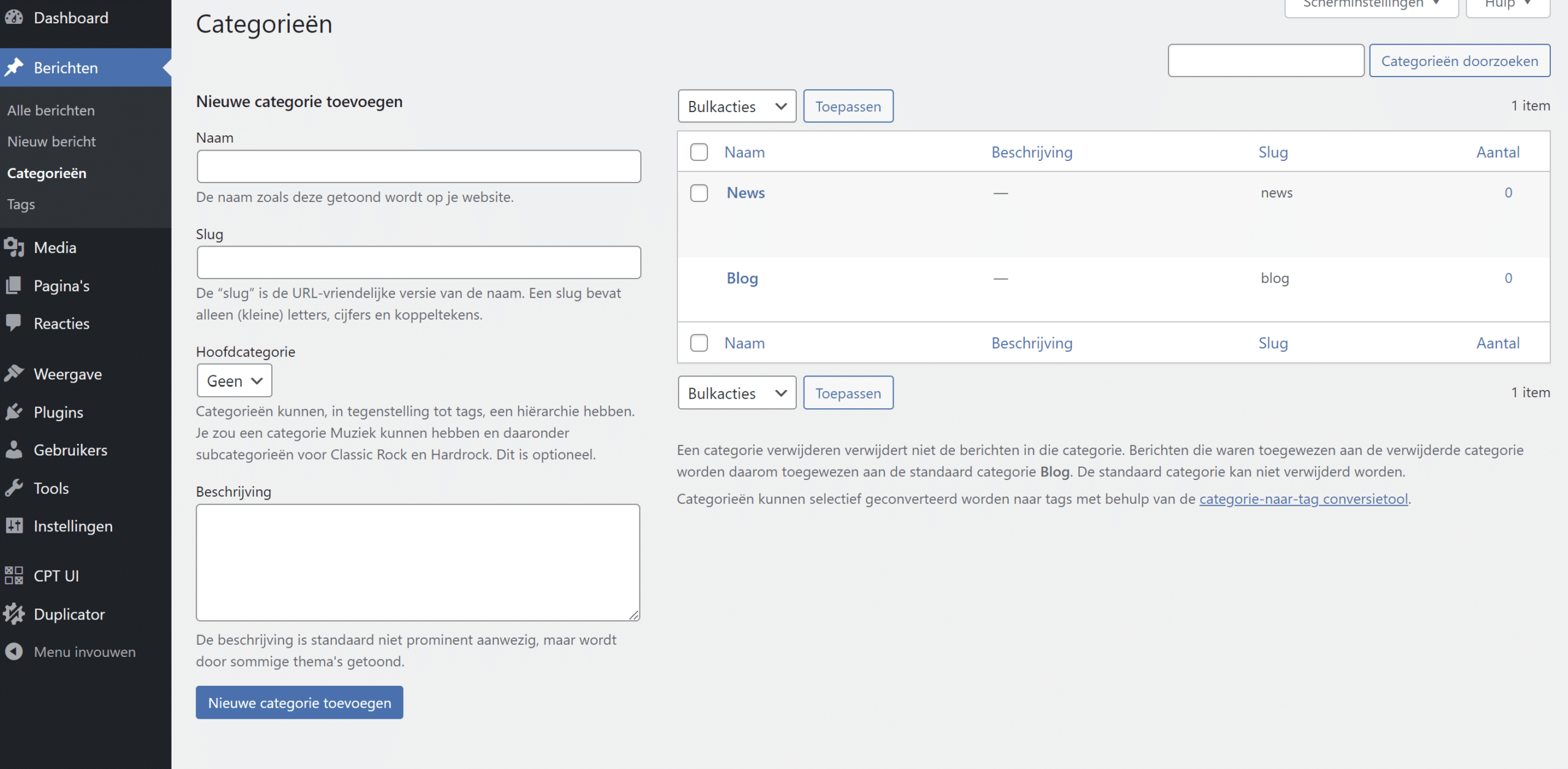
In our view, comments in WordPress are a necessary evil. If you’re running a business website (including a blog), those comments are unnecessary. They’re mainly useful for large blog websites.
Comments are therefore highly susceptible to spam and have often been abused by “SEO specialists” in the past.
Here’s how to set up comments in WordPress to make them SEO-friendly:
- By default, WordPress ensures that outbound links are assigned the “nofollow” attribute. This way, Google won’t follow the links, making it much less appealing to post spam on your website.
- Set it so that you manually approve every comment. This will help you avoid unwanted comments.
- Disable comments. This setting applies only to new blog posts; for existing blog posts, you’ll need to set this manually within the blog post itself.
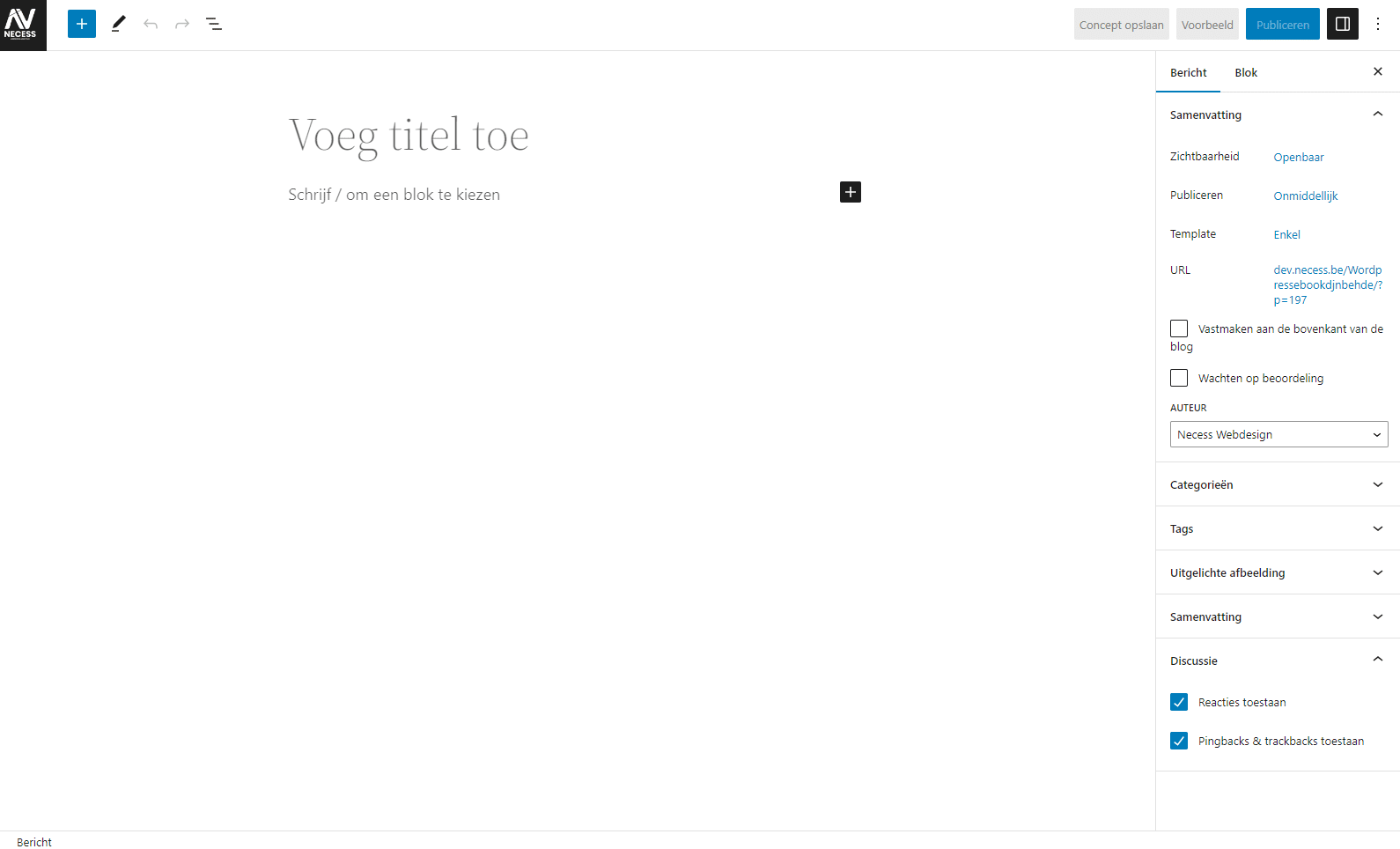
Things are about to get a little technical here, so as a beginner, you might want to skip this chapter for now.
WordPress adds a robots.txt file by default. So, as a non-technical user, you generally don’t need to worry about this. Or you can learn how to create a robots.txt file yourself.
We’d also like to warn you that a robots.txt file is extremely powerful, but you can also do a lot of harm with it. Blocking your entire website from search engines is the rule rather than the exception—especially if you tackle this without the proper knowledge.
What exactly does a robots.txt file do?
Let me just explain what a robots.txt file actually does. It sets out the guidelines for robots. Specifically, these are mainly crawlers. Do you remember those little spiders that index the entire internet? Well, those are them.
A robots.txt file tells them what they’re allowed to access and what they should stay away from.
You create a robots.txt file for all crawlers, not just Google’s. You can even set different rules for different crawlers.
In our humble opinion, a menu is the most important part of your site. It helps visitors navigate as smoothly as possible.
Your WordPress menu is undeniably important to Google, too. Internal links do a lot for your website. And the most powerful internal links? They’re in your menu. Makes sense, right?
Your menu—and the links it contains—appear on every page and help visitors navigate your website.
A good menu makes or breaks your website architecture.
By default, we disable the option to automatically add main pages to the menu. Since we have a clear understanding of our site architecture and know how all the pages are connected, we can do this.
Our menus are carefully thought out, and we include everything that should be on them.
So there’s no need for WordPress to add new pages on its own.
This is an example. The appearance may vary depending on your theme and/or WordPress version.
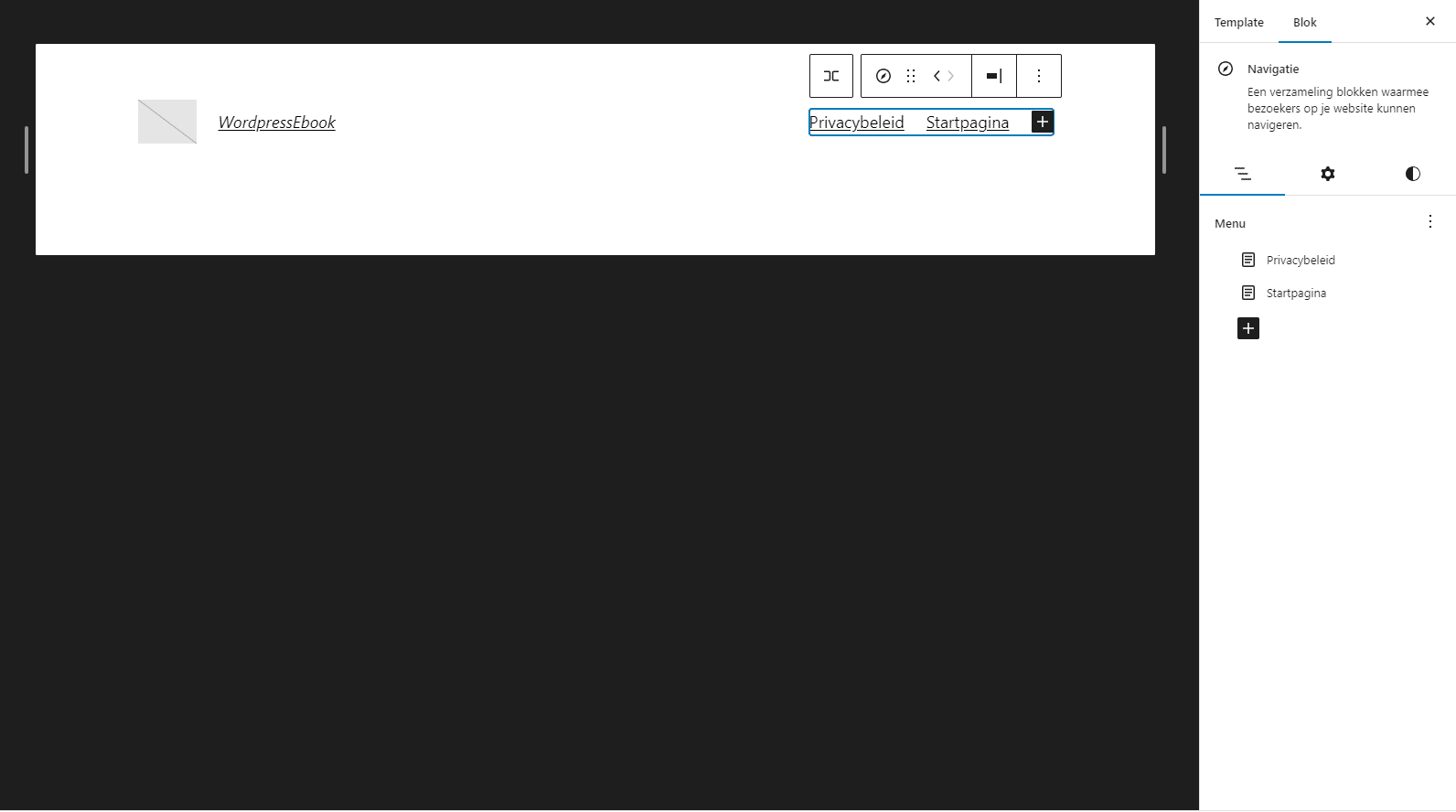
Submenus: a curse and a blessing
In WordPress, you can add submenus (depending on your theme, there are even mega menus). That’s how you create those dropdowns. This way, you can include more links in your menu. Fantastic, right?
Not really. Every week we come across menus with numerous submenus (within submenus). We can’t make heads or tails of them, and Google certainly can’t either.
Be selective about which pages you include in your menu and how you organize everything.
How Menus Work in WordPress
You can create multiple menus. Depending on your theme, a menu will appear in a specific location.
Generally, they display your primary menu as the “real” menu at the top of your page.
In addition, you can create your own menus to display them in all sorts of places.
The big advantage of a menu is that you can make changes in one central location, and they’llautomatically be applied everywhere.
Setting up WordPress on your hosting service isn’t equally easy for everyone. Basically, there are just a few simple steps you need to follow:
- Connect to your FTP server
- Upload the WordPress core files
- Create a database (on your hosting account)
- Enter your database information into the wp-config file
- Open your website
“Easy peasy!” says the developer, who has many years of experience under his belt.
Since you only have to do this once anyway, it’s best to have an expert handle it. That way, everything will go smoothly.
Is your WordPress site set up? Then you can get started on the technical aspects of WordPress SEO. Here we go!
An SSL certificate ensures that your visitors establish a secure connection to your website.
It’s best to handle this through your hosting provider.
An SSL certificate expires after a certain period of time, so be sure to keep track of it. These days, you have the option to have your hosting provider handle this automatically. However, that’s not always the case.
Once your SSL certificate is set up, you’ll have an httpsconnection instead of an http connection.
Do you remember the structure of your www or non-www version?
So https and http are another one of those little things.
Set up your SSL certificate before you start setting up your WordPress site. That way, everything will be set up correctly from the start, and you won’t have to make any changes later.
Any change (especially at this level) is detrimental to your SEO.
WordPress relies on themes and plugins. The basic version is powerful, but these days you can’t do without those add-ons.
You should update your WordPress environment regularly. You do this not only to keep your site secure, but also to get the latest features.
An experienced WordPress developer knows that things can sometimes go wrong during an update. Plugins that suddenly stop working together, your PHP version not being set correctly…
These are all issues that can negatively impact your search engine optimization.
That’s why you should use a test environment. That way, you can test updates first before implementing them on your live website.
Your website’s loading speed is an official ranking factor. Yet many WordPress websites load extremely slowly—though this is usually not due to WordPress itself.
A WordPress website in the wrong hands will become slow. That’s why you should work with an experienced developer to assist you—especially if you want to get started with SEO.
Work with your developer to take a critical look at your plugins and themes and figure out what could be improved. Or better yet: what can be removed.
Here’s how we optimize the speed of WordPress websites
- Remove Unnecessary Plug-ins
- Delete Unused Themes
- Select plugins and themes based on code, reviews, and number of installations
- Installing WP Rocket & Imagify
- Optimize images
- Use lazy loading
- Clean up your WordPress database
- Check the page structure
- Analyzing Hosting
- Check the PHP version
- Embed YouTube videos instead of MP4 files
- Using Caching
What does WP Rocket do?
WP Rocket is a plugin for optimizing your files.
But weren’t we supposed to reduce the number of plug-ins?!
That’s right! Although WP Rocket will help bring everything together and optimize it.
The “file optimization” component, in particular, has a major impact.
With WP Rocket, you can optimize your files, set up basic caching, enable lazy loading, clean up your database… In short, it’s an all-around toolkit to make your WordPress site faster.
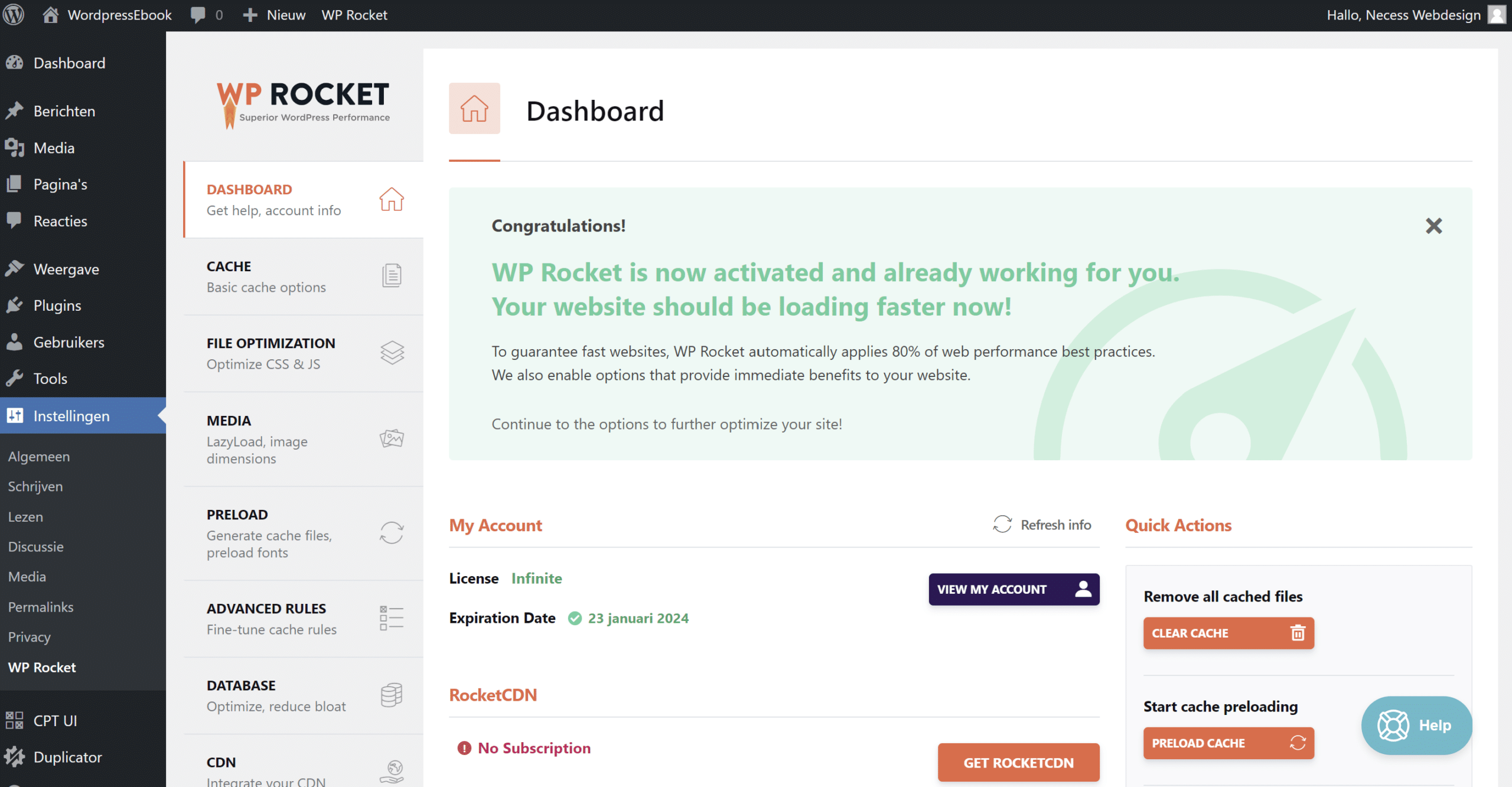
Tip
Optimizing your files this way could also completely ruin your website. In that case, you’ll need a technical expert to fix it.
Don’t panic—you can also choose “light” mode or disable the plug-in.
What does Imagify do?
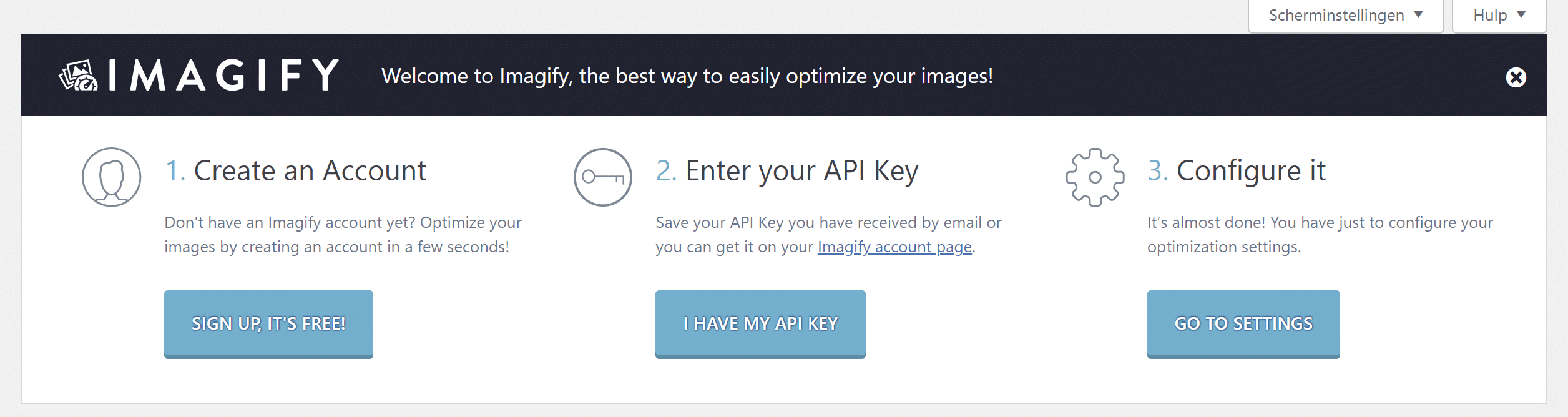
Imagify is also a plugin—albeit from the same developers as WP Rocket. That’s exactly why we choose this file optimization plugin over all the others.
Imagify works flawlessly with WP Rocket. This makes the combination of these plugins incredibly powerful.
Specifically, Imagify makes your photos a lot smaller without losing any quality. I’m not talking about the photo itself, but about the photo file.
So your photo remains the same size and just as clear, but it’s stored in a much more compact format within the file.
What does caching do?
WordPress is a collection of files. Remember?
This means that every time you access a page, that page has to be requested, generated, and displayed.
Caching stores the result (only the displayed version) and shows it immediately.
As you can imagine, this is much faster, so you gain in speed.
There are several types of caching. These are usually offered by your hosting provider.
We prefer Varnish caching, although this varies depending on the application
Tip
Caching stores a version. When you make changes, you must clear the cache to see your changes.
The cache is automatically cleared every few hours. If you don’t clear it yourself, it will simply take longer for your changes to appear.
What about a CDN?
When optimizing your website’s speed, you’ll often hear the term “CDN.” CDN stands for Content Delivery Network.
Basically, this means that you set up a network of servers around the world. These servers then host a version of the website or application on the nearest server.
For you, a CDN isn’t relevant 90% of the time.
A lot of people overlook the purpose of a CDN:
Make files available worldwide on a server as close as possible.
If you don’t have international ambitions and your target audience is in Belgium, then a CDN won’t help make your website faster for your target audience.
Please note: Google sends its crawlers from its servers, which are not always located in Belgium. Using a CDN can therefore make your website appear faster to Google. This doesn’t improve the experience for your users, but it might for Google.
Tip
Choosing a server close to home can therefore help make your website faster. Although there are both supporters and opponents of this approach.
By default, WordPress comes with pages and posts (blog articles).
Use the right type for the right purpose:
- A page is, in effect, just a page. You want to show something, tell a story, sell something… It’s a permanent part of your site, and in principle, very little about it changes.
- Posts appear in your blog feed. If you’re serious about SEO, you’ll add new articles to it daily, weekly, monthly… A post tends to focus on informative topics.
It doesn’t make much of a difference for SEO. I’ve seen websites rank well even when they add all their “blog posts” as pages.
To keep things clear for yourself (especially in the long run—which is what we’re aiming for, right?), it ‘s best to make a strict distinction between the two.
Google also recognizes the difference—especially when you use structured data to mark up your blog posts. That’s when it becomes clear why differentiation is important.
Tips
- If your permalinks are set up correctly, there will be no difference between the URLs of your blog posts and pages—unless you’ve specifically configured them differently.
- Always choose the shortest possible URL. Be careful with WordPress, since the system automatically converts your title into the URL by default.
Do you want to set up an online store on your WordPress website? If so, you should use the WooCommerce plugin.
Since the basics are the same, the same tips and tricks apply.
This adds WooCommerce:
- Custom post types for products and their associated categories/tags.
- Features for creating even more pages
- Code for operating your store
- Shopping Cart
- Checkout Pages and Functionality
- …
Would you like a separate guide on WooCommerce SEO? Send me an email at axl@digital-climax.be.
Then we’ll beat him up.
Tip
We’ve developed our own WooCommerce SEO plugin to easily identify long-tail keywords.
Interested in helping to test this out? Send me an email.
These tips are just as important, but they go beyond the scope of WordPress. They apply to all websites, online stores, CMSs, and more. In other words, they are more general SEO tips that have an impact on more than just WordPress websites.
It’s a diagram showing how your website is structured and, most importantly, how all the pages are connected. Internal links are therefore a key part of this.
It all comes down to what kinds of pages they are, where those pages are located (URL structure), how they’re related, what they focus on, and—more importantly—what they don’t focus on.
By starting with a rough outline, you can clarify your focus.
This way, you’ll know which keywords to target, where to target them, and how.
How do you get started with website architecture?
You design a website’s architecture before even writing a single line of WordPress code. In fact, your architecture might even require you to choose a different CMS.
Creating a website architecture is simply a matter of mapping out which pages go where and how they’re connected.
Here are the two things you’ll need:
Once you have all of that, you’ll have a clear picture of what you want to focus on and what it will take to get there.
You use that data to create content clusters. These are mini-architectures within your larger structure.
Gather all the data and develop an architecture, plan, or mind map for your site. You can choose the name yourself.
Tip
Are you looking to hire an SEO specialist? If so, do it before you call your web developer. That way, they can lay out the plan, help you choose your web developer, monitor the developer’s progress, and guide the SEO migration.
You can clarify a website’s architecture using internal links. These are links within your own website—from one page to another.
They help your visitors click through to other interesting content.
In addition, they guide Google’s crawlers to other content for indexing.
The anchor text you use plays a huge role in this. That’s because it tells Google what the linked page is about.
Adding Internal Links in WordPress
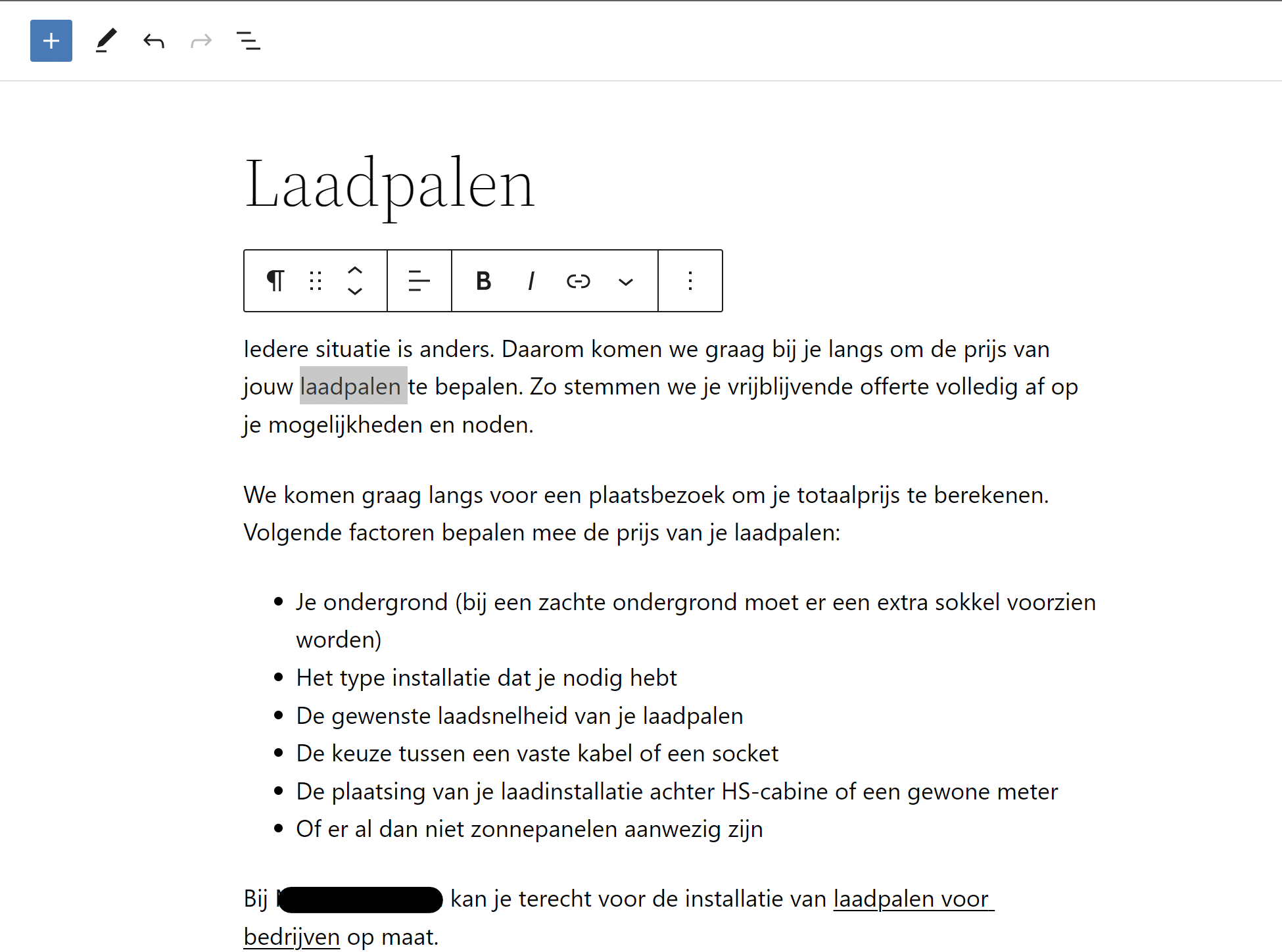
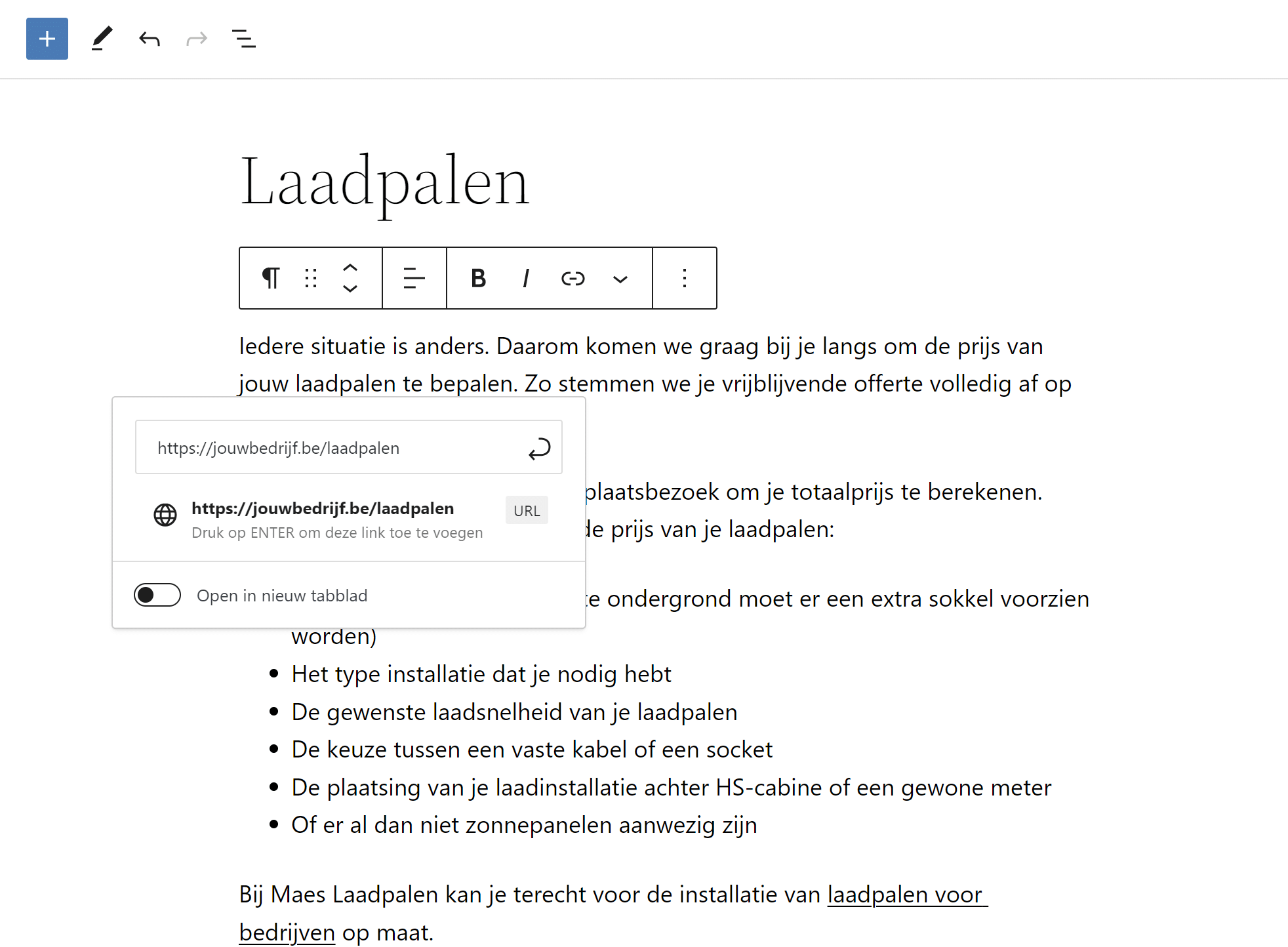
Adding an internal link in WordPress works just like in Word.
- Select your anchor text (the text you want to link to)
a. Choose it strategically - Click “Insert Link”
- Add a link
- Select the settings for your link
Tip
Don’t forget to add internal links to your new posts in older posts. Those older posts are often already indexed and are crawled regularly. That way, Google can find your new content quickly.
Google Search Console is a tool provided by Google itself. This tool provides you with data on your (WordPress) SEO results.
You can keep up with a lot of interesting topics there:
- Keywords You Rank For
- Number of clicks and impressions for keywords and their average position
- Indexed pages
- Submit Your Sitemap
- Structured Data (Issues) on Your Website
- Backlinks (although this is a limited overview)
- Website Speed Metrics
- Removing Content from Google
This tool is so comprehensive that we’ve created a separate content cluster for it:
Duplicate content is the phenomenon where multiple pages rank for the same keyword. Google isn’t sure which page is the most relevant and ends up alternating between all the options.
As a result, no single page ranks very high, and you’ll see poorer results.
So this isn’t a penalty from Google for copying and pasting content from another site. Although that’s something we strongly advise against. You can definitely be penalized for that—and not just by Google.
So, make sure that every page has a clear focus and that there are no (internal) competing pages.
It makes sense, doesn’t it?
Tip
With a good website architecture—one that’s clear to everyone and is effectively followed—you won’t have to worry about duplicate content.
An “exact-match domain name”* still has an advantage. Not as much as it did 20 years ago, but you still have an edge.
*Incorporating your keyword into your domain name
Nuance
Here’s the important point we’d like to emphasize: SEO isn’t the only form of marketing. Branding, email, and ads are also key components of your (online) marketing strategy.
I certainly hope so.
That’s why I’d rather choose a strong name with great branding than a domain name chosen purely for SEO.
This, too, depends on your strategy. If you go all-in on SEO, the balance tips the other way.
All right, you’ve covered the basics. Now let’s look at the practical side of things. Starting with the SEO plugins you can install to overcome WordPress’s own shortcomings.
A good SEO plugin includes the following features:
- Generate an XML Sitemap Automatically
- Add Meta Titles and Descriptions
- Add structured data
- Setting Up Image SEO
- Setting Up Redirects
There are still quite a few features that an SEO plugin adds. However, we should note that it’s better to configure these settings yourself (such as a robots.txt or .htaccess file) or use external tools (for content analysis, linking Analytics and Search Console, and so on).
An SEO plugin is necessary and extremely useful, but it’s no substitute for your SEO tools. Those (if done right) go much deeper and help you gather insights.
In our view, an SEO plugin serves to put those insights into practice, both practically and technically.
An overview:
- SEOpress (our go-to plugin)
- RankMath
- Yoast SEO
- All-in-One SEO
Why SEOpress?
SEOpress is a powerful SEO plugin with clean code. You can do a lot with this plugin—a whole lot.
Discover SEOpress
Breadcrumbs
Breadcrumbs are an important element of your WordPress SEO.
They help automatically add internal links. In doing so, they help clarify your website’s architecture—both for Google and for your users. Users primarily use these links to get a general sense of where they are on the website.
General SEO Plugin Tips
Take your time going through all the settings. Check to make sure everything (that’s relevant) is set up correctly. This will allow you to optimize the system right away.
You should also purchase the premium version. SEO requires an investment. An SEO plugin with an annual cost of around €100 is a good investment.
Finally, we recommend that you ignore the green dots. They give you the basics, but just because all the dots in your SEO plugin or tool are green doesn’t mean you’ll automatically rank highly.
Use your own judgment, gather data, put it all together, and build a website for your visitors. Google will follow automatically.
Note
Not willing to purchase the premium version or invest in your SEO? Then go back to the SEO mindset.
SEO takes time and money. You can save a lot of money, but you really do need to set aside a minimum budget.
Your title tag or page title is the title that actually appears in Google. Your meta description is the piece of text that appears below it.
These two items determine how your website appears in search engines.
You use these primarily to increase your click-through rate.
The page title and meta description naturally include your keyword.
However, their main goal is to help searchers decide whether to click on your result. So make sure you appeal to the visitor, highlight unique selling points, and summarize the key points.
It’s best to end your meta description with a call to action.
Note
With the rise of AI, Google sometimes rewrites your title tag and meta description. So it’s possible that what you set won’t actually be displayed in the search engine.
Headings—that is, titles and subtitles—bring structure and clarity to your articles. Just imagine this text as plain text. No one would read that.
Reading a heading tells you exactly what the content is about. Based on that, you can decide whether to read the article or whether you already know enough about the topic and want to move on to the next one.
- <h1>: Limit to one per page; this is the main title of your page and describes its overall purpose. Be sure to include your keyword here.
- <h2>: The standard subheading used to divide large blocks of text. These should include your keyword, but this is not a requirement for every H2 heading.
- <h3>: If you want to create further subheadings, look at the H3 heading.
- <h4>: We rarely use these. Occasionally, however, it is necessary to create another subdivision.
- <h5>: We really never use this one
- <h6>: Not this one at all
The most important thing here is to respect the hierarchy. An H2 heading contains several smaller headings. As soon as you move on to a new H2, that marks the start of a new section, which may in turn contain smaller headings.
Be sure not to confuse them.
Our approach to SEO is based on the goal of helping your future customers. By helping them, they’ll come to appreciate your product, expertise, or service on their own.
You don’t do that with plain text. You use subheadings and format the content nicely.
Add some variety with photos, icons, frames, etc.
In addition, you can create a sense of calm in your content by using white space. Make sure the reader knows what goes together—and, more importantly, what doesn’t.
White space is essential for giving readers moments of respite and keeping them engaged.
Or did you really think you’d read all the way to the end of a monstrous piece of text—just a bunch of words strung together—without even thinking about periods and commas? Nobody does that. We’re looking for engaging copy with relevant content. White space is an added value that we haven’t completely forgotten in this piece—even if it was somewhat unintentional. That’s exactly why we place such a strong emphasis on content design. It’s much more enjoyable when your content looks good and is useful. No one reads a huge chunk of plain text thrown together, as is the case here. At least, not willingly.
Did you skip the part above? You get the idea?
Word Count Tip for WordPress SEO
Word count is a controversial topic in SEO. Research has shown that longer content ranks higher.
So now everyone is writing blogs with as many words as possible.
Wrong.
What did those studies actually prove? Full texts perform better.
No more, no less.
So you shouldn’t try to find a text that’s as long as possible with as many words as possible.
The trick is to say as much as possible in as few words as possible.
If you write an article that covers absolutely everything—and I mean absolutely everything—you’ll end up with a lot of words.
Don’t keep harping on a topic.
Get to the heart of the matter, add value, and move on to the next thing.
Optimizing images is important for every website. Companies that sell visual products, in particular, benefit from this. Image SEO is therefore largely the same.
It depends on:
- Alt tag
- Title Tag
- File name
- File size
In WordPress, you set the alt tag and title tag in the media library.
Of course, you decide on the file name in advance. If you upload a file twice, WordPress automatically adds numbers to the end of the file name. This makes sense, since otherwise it wouldn’t be able to find the correct file. So be sure to pay close attention to this.
You can avoid adding new items by deleting your old file first.
With a tool like Imagify, you can easily reduce the size of your files without any noticeable loss of quality.
That way, you’ve completed all the SEO optimizations for your WordPress images.
Note Depending on your theme and SEO plugin, those settings may be overridden in other places. So always make sure your tags are set up correctly. You can do this by checking your website from the front end, preferably when you’re not logged in. |
Easy, right?
Note
Depending on your theme and SEO plugin, those settings may be overridden in other places.
So always make sure your tags are set up correctly. You can do this by checking your website from the front end, preferably when you’re not logged in.
Ah, the SEO strategy—Axl’s favorite part.
Three factors influence the SEO strategy for WordPress websites:
- Where are you today?
- Where do you want to go?
- What do you need to get there?
Put all those elements together, and you’ll end up with a great strategy.
Thefourth factor we take into account is experience. After many years in the SEO world, we’re able to spot opportunities, difficult keywords, and strong competitors much more quickly…
That doesn’t mean you can’t find them on your own. It will just take more time and some adjustments.
Practical Implementation
0) Baseline measurement
Start by assessing your current position. How well are you performing today? How is your website structured? Both its architecture and its technical foundation. Have you set up all the tools?
Map everything out, and you’ll have a foundation to build on.
1) Keyword Research
Keyword research helps you see which keywords you’re ranking for today, which ones you’re not, and which keywords your competitors are ranking for.
You’ll learn a lot from that and can put together a list of keywords.
2) Competitive Analysis
In a competitive analysis, you identify who your competitors are and how they’re performing. You already know their keywords. From that, you can determine which keywords are achievable and which are (currently) still too ambitious.
First of all, pay attention to the phrase “currently possible.”
Every beginning is difficult. With WordPress SEO, too, you’re building a snowball that needs to grow. The bigger your snowball is, the easier it will roll.
Keywords that are out of reach today may not be within two years. Your hard work and ongoing optimizations are paying off.
And yes, SEO is a long-term strategy. You can expect to see the first results after just 3–6 months. Timeframes of 2–5 years are not uncommon.
The key is to keep focusing on value and quality.
Tips for Your WordPress SEO Strategy
A strategy is a guide.
Think of it as an airplane flying from Brussels to New York.
The route has been determined. However, it is impossible for an airplane to fly exactly that route.
The autopilot constantly makes small adjustments to stay on course as best as possible.
The extent to which you divert the plane determines the detour you take.
Develop an SEO strategy and continuously refine it. No one has a crystal ball, but as long as you keep refining your SEO strategy, you’ll keep learning and moving forward.
And I’d like to circle back to the point that experience really helps you figure out what works more quickly.
Here are some practical tips you can take away from this:
- Start with long-tail keywords
. These are keywords with low search volume; they usually consist of multiple words (such as questions). “Safety shoes” is the short-tail version of the long-tail keyword “What safety shoes should I wear on a construction site?”
- Start with long-tail keywords
- Focus on local SEO for quick wins
There are no shortcuts in SEO, but there are definitely quick wins. This makes local SEO a lot more accessible. Start by ranking in your own municipality and the surrounding area. For many stores, this is actually the only SEO strategy that really pays off.
- Focus on local SEO for quick wins
Tip
Conduct your keyword research in other languages as well, and make sure to provide your translator with clear instructions. It would be a shame to go all-in on SEO in one language and then ignore the others, wouldn’t it?
Many WordPress websites—and websites in general—need to be available in multiple languages.
That presents quite a few SEO challenges.
And yes, we see this part go wrong time and time again.
Translating a WordPress website in an SEO-friendly way is a technical feat.
A few points to keep in mind:
- Avoid using third-party services that translate your website and make it available via JavaScript. Google can’t see any of that content.
- Choose a good setup: always use subfolders or separate domains for your translations. That way, you’ll have separate URLs for each language, and remember: a separate URL is indexable and can therefore drive traffic to your site.
- Set your hreflang tags correctly.
Our favorite translation plugin for WordPress is WPML (WordPress Multilingual).
Not the most user-friendly (especially at first).
But it is the one with the most features. That means you can fine-tune it perfectly to your situation.
Fortunately, they have plenty of documentation to help you get started.
Take your time with this, or seek the help of someone with practical experience.
It’s time to introduce two more extremely important tasks for your WordPress SEO:
- Content Writing
- Off-page SEO
You know that SEO rests on three pillars: technical aspects, content, and authority.
Your WordPress site may follow all the SEO rules, but if the content isn’t good, it’ll never rank at the top
In addition, you also need backlinks (off-page SEO) to build your authority.
So, to improve your WP site’s search engine ranking, you need to build on your website, within your website, and alongside your website.
Want to learn all about these SEO steps?
Now that your WordPress site is up and running, it’s important to inspect it thoroughly once again—not just once, but on a regular basis.
We often turn to Screaming Frog for a one-time, in-depth audit. This allows us to quickly check whether the basics are in order and whether we need to take action anywhere.
In addition, we set up an audit in Ahrefs as standard. In Cé, both audits check for the same issues—technical errors. Still, other issues occasionally come to light.
In terms of cost-benefit, Screaming Frog is the best investment you can make.
Tip
You can run the Ahrefs SEO audit weekly, which allows you to continuously monitor your technical foundation. If something goes wrong, you’ll catch it right away.
Google Search Console provides insights over a slightly longer period of time. That tool needs to collect data first before you can draw any conclusions from it.
This tool highlights areas for improvement in terms of both technical issues and content and authority. It doesn’t present them to you as insights. Search Console provides you with the data you need to gather insights.
So don’t expect any specific action items.
Tip
Be sure to review your website every now and then. Pretend you’re a visitor coming to your site for the first time. This often helps you identify opportunities for UX improvements or errors that are technically correct but still aren’t quite what they should be.
Example: a link to the wrong page—it works just fine and doesn’t return any technical errors, but it is, in fact, incorrect.
Is everything set? If so, we’d love to welcome you to the SEO loop.
Depending on your budget, you’ll work on your SEO on a daily, weekly, or monthly basis.
Schedule regular tasks to monitor and optimize your website.
Actions to be monitored on a regular basis:
- Optimizing content: Are there any additions, different phrasing, or additional points of focus… that could improve your content? Keep your future customers in mind above all else. Of course, you can include your keyword here and there.
- Creating new content: You don’t have to publish at least one blog post every month—especially not if they aren’t relevant. It’s true that new content helps you move forward, but only if it fits your SEO strategy, targets a keyword, and is high-quality. Writing just for the sake of publishing doesn’t do anyone any favors.
- Tracking Keywords: Use a rank tracker to monitor the rankings of your keywords. This will help you see the impact of your optimizations—whether positive or negative.
- Track changes: Keep a close eye on every change made to your site. Excel works great for this. This way, you can attribute increases or decreases to your optimizations. From this, you’ll learn what works and what doesn’t. In the latter case, you can reverse the changes.
- Updating Your Website: Updating your WordPress website is essential. It ensures that your website remains high-performing and secure. This, in turn, indirectly impacts your SEO.
- Linkbuilding: Actively seek out new backlinks. Monitor your competition, keep an eye on your market, network with fellow entrepreneurs… While high-quality content may attract backlinks “on its own,” a little help never hurts.
Digital Climax is an SEO agency. That means we focus on SEO. Our extensive experience in building and optimizing WordPress websites is a definite plus.
Every now and then, we still take on a WordPress website—though it has to fit within the SEO strategy.
Let me explain that:
We always work in three phases:
- Getting Started with SEO
- Technical optimization
- SEO cycle
During the SEO kickoff, we’ll get to know your business in detail. Who is your target audience? What knowledge do they have? What questions do (potential) customers ask? How do you reach them today? What are those customers searching for? What are your competitors doing?
These are all questions we’ll answer during the setup process.
We’ll take on the project once and make sure we know the company and the market inside and out.
That’s a two-way investment. The better we are at this, the better we can tailor the strategy.
Deliverables:
- Baseline measurement
- Keyword research
- Competitor analysis
- Website architecture
- SEO strategy
- To-Do Lists and Priorities
- Conversion Tracking
- Optimize/Set Up Google My Business
Now we’re going to dive into the technical side of your site. We’ll take a look under the hood and come up with specific areas for optimization.
We’ll discuss these points with your web developer and request a quote to have them addressed. Depending on the cost-benefit analysis, we’ll proceed with the changes.
Sometimes things aren’t quite right, but the cost or risk of addressing the issue is so high that we have to work with it as is.
That’s exactly why you never get a clear-cut answer in SEO—instead, you’re always told, “It depends.”
That’s what makes it complicated.
If your site is really in bad shape, let’s build a new one. We’ll guide you through the process from the very beginning to make sure it’s done right this time. And yes, we always recommend a WordPress website. You’ve already read the reasons why above.
Deliverables:
- Technical Audit
- Areas for Improvement
- Communication & Follow-Up with the Web Developer
With a solid foundation and a wealth of knowledge, we’ll then begin our monthly collaboration. As part of this, we’ll produce content, build backlinks, and, of course, keep an eye on the technical aspects.
In this phase, we will effectively implement the strategy we have developed.
Deliverables:
- Content creation
- Collecting Backlinks
- Copywriting
- Optimizations (technical and content-related)
Communication
Communication is our top priority. SEO is complex, and you focus on the big picture. We make sure you’re in the loop every step of the way. That way, you know what we’re doing, why we’re doing it, and what impact it has.
This begins during the onboarding phase and continues throughout our monthly collaboration, which includes a monthly call where we go over everything.
That way, you’ll actually know what’s going on, instead of just getting a standard report full of meaningless numbers. Because let’s be honest, you’re not going to read that after the third month anyway.
Please note: We can’t work in isolation. Outsourcing your SEO requires an investment of time and money.
Of course, we keep that to a minimum. But you know the market, your product, and your customers. That knowledge needs to be translated into strong landing pages, blog posts…
You’re passionate about your business; we want to share that information with the general public and make sure it gets noticed.
Table of Contents: WordPress SEO
- Why Choose WordPress
- Why not choose WordPress?
- How Is a WordPress Website Structured?
- Setting Up WordPress for SEO
- WordPress Installation on a Hosting Account
- WordPress-Independent SEO Tips
- WordPress SEO Plugins
- WordPress SEO Tips
- Optimizing Images in WordPress
- Developing a WordPress Strategy
- Translate a WordPress site to make it SEO-friendly
- To-Do List for Your Website
- WordPress Environment Audit
- WordPress SEO Loop
- How to Get Started with SEO on Your WordPress Site