
Screaming Frog Manual
An SEO tool that analyzes hundreds of URLs for free, flags issues, and even offers solutions. Sound too good to be true? Not at all. Meet SEO Spider Screaming Frog. This program crawls your website exactly like Googlebots do, bringing a wealth of valuable information to light. Dive into our comprehensive guide to Screaming Frog.
Your pages only appear in the search results of search engines like Google because they crawl, index, and rank your website. Crawling is the process by which bots—also known as crawlers or spiders—map out websites. Indexing is the process of adding URLs to the search engine’s database. The search engine then ranks websites based on how well they match the search query.
Screaming Frog is one of our favorite SEO tools. It is a crawlerthat, just like Googlebot, explores websites using internal links and backlinks. It thoroughly analyzes every URL it encounters. In the process, it identifies issues—primarily related to your technical SEO. Running your website through Screaming Frog is guaranteed to reveal plenty of areas for improvement. In this guide, we’ll walk you through every step, from downloading and installing the tool to crawling, analyzing, and resolving issues.
This crawler works only on desktop computers. You can install Screaming Frog in just a few steps.

- Visit the Screaming Frog website.
- Click the blue “Download” button, and then click the green button that corresponds to your operating system (Windows, macOS, or Ubuntu).
- Double-click the file you just downloaded.
- Follow the installation procedure.
- Click “Finish” and “Accept,” and Screaming Frog will open automatically.

You’ve just installed the free version of Screaming Frog. With this version, you can crawl up to 500 URLs at a time. That limit is removed when you purchase an annual license. You’ll also gain access to advanced configuration options. Additionally, you’ll be able to save, reopen, and compare crawls, as well as connect Screaming Frog to Google Search Console and Google Analytics.
When you purchase a license, you must enter your username and license key in Screaming Frog. Close the application and restart it to enjoy all its benefits.> s recommend using the default database storage for saving crawls, which can be found under File > Settings >> Storage Mode.
Enter a URL in the search bar at the top (for example, your website’s homepage) and click “Start.” We’ll use our own website as an example, so we’ll enter digital-climax.be. Screaming Frog will now scan all URLs on the same subdomain that are linked to in the HTML. At the bottom, you can track the crawl speed and, in a green bar, the number of URLs that have been crawled and those still to be crawled. Our website has more than 500 URLs, but that’s no problem for this Screaming Frog guide.
Tip
A subdomain is a branch of your domain—learn about all the similarities and differences in our guide to online domains.
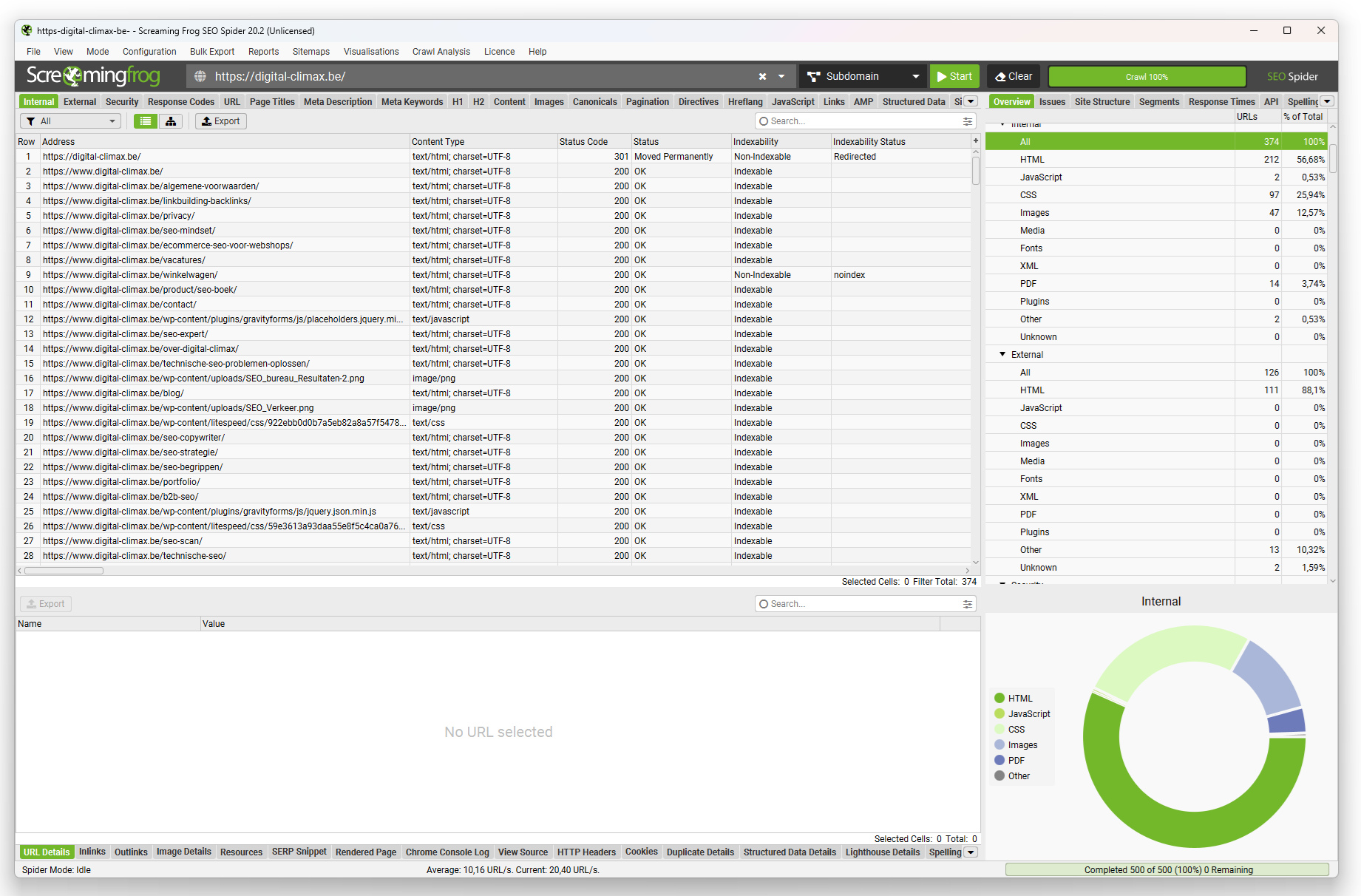
You’ll immediately see a lot of information in the largest panel at the top left, especially when you drag the menu bar below it further to the right. Here you’ll find all the crawled URLs, along with their status code and status, whether they’re indexable or not, their metadata and its length in characters and pixels, the H1 and the first two H2s, the canonical URL, and much more. Is Google not indexing your page? You’ll see that right away here.
By selecting “All” in the top-left corner to choose different file types, you can view only media, PDFs, or HTML web pages. You can also easily make that selection in the box in the top-right corner. Scroll down through the “Overview” tab to get an initial, general view of your website. Along the way, you’ll see, among other things, internal redirects indicated by a 301 or 302 status code, which URLs contain an underscore, where page titles are missing, which H1s are too long, and which pages are struggling with thin content.

All of these technical SEO issues—and their solutions —are also conveniently grouped on the next tab, “Issues.” Screaming Frog assigns various labels on its own. The tool distinguishes between “opportunities,” “warnings,” and “issues.” These, in turn, are assigned a low, medium, or high priority.
On some pages, for example, you’ll see a canonical URL that’s different from the page’s actual URL. As a result, crawlers don’t index the URL itself, but rather a different one. You may have chosen this yourself, for example, by using a canonical tag. Or perhaps Google decided this on your behalf. You can see this in Google Search Console. So it’s not necessarily a problem, but it is a warning.
Use the filters in the top right corner to view the issues, warnings, and opportunities separately. Click on one of the issues, and the relevant URLs will appear on the left. Below the “Issues” section, you’ll see a description of the problem and suggestions for resolving it. Screaming Frog identifies more than 300 potential SEO risks for your website. Do you see now why we love this tool so much?

You’ll find the complete overview on the right; to dig deeper into issues, use the specific tab on the left. For example, if you come across a 404 status code —which deters both search engines and visitors—click on it to see the relevant URL(s) on the left. Next, click on the URLs themselves to view specific information in the various tabs at the bottom of your screen. This way, you can see which internal links point to your broken page—you’ll want to redirect those as soon as possible.
To access the options under “Configuration” in the top menu, you’ll need to purchase the paid version. But even the free version of Screaming Frog offers plenty of features. Feel free to explore them on your own, using these tips:
- Under “Mode,” select “List” instead of “Spider” to upload a list of URLs to crawl.
- Use the various options under “Bulk Exports” and “Reports” to export your data into editable files.
- Experiment with “Visualizations” to, for example, create a tree diagram of your website and review its architecture and content clusters.
SEO tools are essential for optimizing your content for search engines. We run Screaming Frog on a regular basis, including for the following tasks:
- Analyzing websites for e-commerce SEO, such as Shopify SEO
- Mapping URLs for SEO During a Rebranding
- Identifying orphan pages that do not yet have any internal links pointing to them
- Conducting an SEO audit before and after an SEO migration
- Developing an SEO Strategy
Screaming Frog offers a wide range of features and applications. Our tip: download the free version, have it crawl your website, and review the results. You’re sure to find ways to improve your search engine visibility. Do you have a large website, or do you want to track the impact of your changes? If so, the paid version is worth considering. Try out Screaming Frog with this guide at hand and discover all its benefits.