
Google isn’t indexing my page
Every day, dozens (or more) of entrepreneurs wake up with a clear vision: I’ll build a website, make it miraculously appear on Google, and attract twice as many customers. But unfortunately, it’s not that simple. Google is very busy and has to process a massive number of new pages every day.
For some reason, the search engine isn’t indexing certain pages on your website. That’s a shame, because you just spent a ton of time creating new content or building a flashy website. And you’d love to share it with all your potential customers as soon as possible. Or could the cause of the error message be something other than a lack of time?

Read below to learn all about the possible (error) messages that may appear during your page indexing. We’re happy to explain the causes of these messages and how to resolve them.
Don’t have time to figure out the cause of your problem on your own? Digital Climax is here to help. Contact us today.
To expand its massive library, Google sends its “librarians”—also known as crawlers—out on reconnaissance missions every day. These crawlers search for new content in the form of web pages. If a page is interesting enough for the extensive library, the crawlers deliver it to their big boss, Google, who then (usually) adds it to the current collection.
If certain pages don’t meet the library’s technical requirements, they won’t be included among the other books. This means that, as a company, you won’t be able to showcase your content. And enthusiastic readers won’t be able to check out “your book.”
Below, you’ll discover why readers can’t find your website in the search results. Perhaps you’re causing this yourself with a “noindex” tag. Maybe Google thinks your content needs some polishing. Or perhaps a technical issue is making your page invisible. A key first clue is your URL’s status code.
Check whether your page has been indexed by following these steps:
- Enter the following search query in Google: site:[your-domain-name], which in our case is site:digital-climax.be. Also, type in a few words that you know for sure are on this page. This way, you’ll only see that specific page instead of all the pages on your domain.
- Google only displays pages that have the status “indexed.” Do you appear in the search results? Yes, your page is in Google’s index.


Submit your website to Google and create an account on Google Search Console. This tool not only allows you to run analyses, but also helps you speed up the indexing request. This is because you can submit a request directly to have your website indexed by Google.
Follow these 3 steps and view the various status messages for your pages:
1) On the overview page, you’ll find the “Indexing” category.

2) Next, click through to the full report on your page indexing.

3) At the bottom of this chart, you’ll find the reasons why Google doesn’t index certain pages.
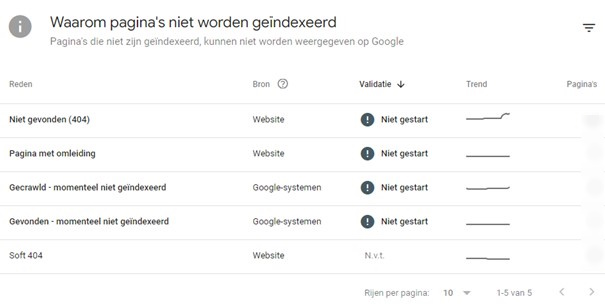
During the indexing process, your website will have one of the following statuses:
- Google isn’t indexing your page: your URL contains an indexing error. Check the table titled “Why pages aren’t indexed” and look for the possible cause.
- Google is requiring you to improve your page functionality: your URL’s user-friendliness is too low. Optimize your website by, for example, making it accessible on various devices, better addressing your users’ search intent, or increasing the loading speed of your pages.
- Google does index your page: good job. Google fully approves your URL and adds it to its index.

1) Google isn’t indexing your page
The first category—and by far the largest—explains why Google isn’t indexing your page. Either you, as the owner, have chosen not to index certain pages. In that case, it’s not an error, but rather an explanation of why crawlers aren’t indexing that page. Alternatively, Google detects a technical or content-related error on your page and deliberately chooses not to index it. Discover the possible messages related to your website’s indexing below.
The following codes fall under status 500 server errors:
- 500 General Internal Server: The server is unable to perform the requested action.
- 501 Not Implemented: The server does not support the HTTP method used by your page.
- 502 Bad Gateway: One server receives an invalid response from another server.
- 503 Service Unavailable: This code appears temporarily, for example, when a server is overloaded.
- 504 Gateway Timeout: One server is not receiving any response from another server.
- 505 HTTP Version Not Supported: The server does not understand the HTTP request.
- 506 Variant Also Negotiates: The server is not configured correctly.
- 507 Insufficient Storage: The server does not have enough storage capacity to perform the action.
- 509 Bandwidth Limit Exceeded: You have reached the bandwidth limit.
- 510 Not Extended: The web server does not support the extension associated with the HTTP request.
- 511 Network Authentication Required: Please authenticate yourself as a user to gain access.
Fixing these errors requires a fair amount of technical knowledge. Consult your CRM’s help desk or your hosting provider to resolve the issue. Or contact Digital Climax to get the right help.
Think of this error as a detour caused by roadwork. On your way to your favorite bakery, you run into a detour and are forced to take a different route. At the next intersection, you run into another detour. You’ll eventually make it to the bakery, but it took you twice as long as usual. These redirects are also noticeable on Google. The search engine doesn’t like detours; it prefers to send your visitor straight to their destination, without any unnecessary stops along the way.
You use a 301 or 302 status code to indicate that there is a redirect on a particular page. If you don’t set this up correctly, Google may decide not to index that page.
Use the Screaming Frog tool to crawl all your URLs. This tool will show you the statuses of all the pages on your website. Delete unnecessary URLs and send your user directly to the correct one.

Create a robots.txt file to specify which pages Google is allowed to index and which it isn’t. However, when your robots.txt file blocks a page, it excludes it from the crawlers. That’s unfortunate if those pages actually contain important information for your target audience.
Check the robots.txt file to make sure you aren’t accidentally blocking certain pages. If you’re not sure how to set up such a file, just leave it out. Not having a robots.txt file causes less damage than a poorly configured one.

By adding a noindex tag to a page, you’re telling Google that the page should not be indexed. When crawlers find a page with this “noindex” tag, the search engine removes it entirely, and you also lose its internal links. This tag is located in the HTML code, more specifically in the page’s HTTP headers. Check whether your code or headers contain this tag and remove it if necessary.
On pages with no added value in the SERP, it’s best to use the “noindex” tag. Examples include pages containing personal information, such as bank details, or thank-you pages that appear after placing an order.

This error message indicates that you’ve encountered a URL with no content—a page with a 404 status code. You may also know these pages as the dreaded “page not found” page.
How do you solve these problems?
- Redirect the page to the correct URL.
- Restore the content of your page.
In addition to a standard 404 status code, there is also a soft 404. With this code, the URL appears to be fine, but Google still suspects there is a problem. The cause of this problem sometimes lies in the loading of images or other elements, or in the absence of content.

Golden Tip
Does your user end up on a 404 page? Incorporate your branding and make it a fun experience. Then redirect them directly to another page that is actually interesting. This way , you’ll prevent them from leaving your site.
Pages with a 401 error code block access for crawlers. You can fix this by removing the authorization requirements. Alternatively, you can grant crawlers direct access to these pages by following the steps in this Google guide.
Is this step too technical for you? If so, please contact our team—we’d be happy to solve this problem for you.
Your page isn’t currently appearing in search results, but that doesn’t automatically mean it contains errors. Google doesn’t consider this page interesting enough at the moment, but it may change its mind in the future.
Make the following changes and resolve this status code:
- Speed up the process of having your website indexed by Google by submitting a request directly to the search engine itself.
- Improve the quality of your content and focus on creating helpful content.
- Focus on SEO-friendly website architecture.
- Focus on linkbuilding to boost your authority.

Google prefers pages packed with relevant content. If you don’t meet the requirements of the search engine and its crawlers, or if there aren’t enough links pointing to the content on your new page, those pages will end up in the “found—currently not indexed” category. What Google means by this is that it knows the URL exists but hasn’t crawled it yet. Both new pages and pages with a poor link structure are therefore left out.
Restore this status by:
- To optimize your content and improve its quality.
- Improve your internal linking structure. Google values a solid structure and clear organization, and gives these pages priority.

This error message appears when there are two pages with the same content, but a canonical tag is missing. Google detects competition between the two pages and can no longer determine which page to prioritize. Google doesn’t understand this at all—not one bit. The appropriate solution depends on the context. Here are all the options available to you:
- Implement a canonical tag in the content of your preferred page. For example: If page X is your preferred page—the one you want Google to index—set up a canonical tag on page Y and specify the URL of page X.
- Set up a 301 redirect.
- Make sure your internal links are set up correctly and always point to the preferred page.
- Add a sitemap and optimize them.

Google decides that it prefers a different page to the one you prefer. You may be setting your canonical tag correctly, but stubborn and headstrong Google clearly has a different opinion and designates a different page as the preferred one. Fix this by ensuring that the content on both pages is distinctly different. That way, you won’t confuse Google anymore and you’ll avoid misunderstandings.

Alternative page with the correct canonical tag
Do you see this status on one of your pages? If so, Google is giving you a pat on the back. By adding a canonical tag, you, as the page owner, are indicating that another page exists with the same content. In that case, it’s good that Google isn’t indexing the page in question. Good job.


2) Google requires you to improve your page functionality
Below are two issues that limit Google’s ability to index a page. They do not prevent indexing, but they do slow down the process.
Indexed, but blocked by robots.txt
Did you create your own robots.txt file? If so, you’re preventing Google from crawling a specific page. But are you still directing your visitors to this page via internal links? Or do users still end up here because other websites redirect visitors to it? If so, Google may still index this page. Replace the robots.txt block with a “noindex” tag. Google will not index this page.
Page indexed without content
This indexed page is not readable by Google, due to the use of JavaScript or certain images, for example.
Make sure Google has no trouble loading your pages. This speeds up the indexing process.
3) Google does index your page
Yes, mission accomplished: your page has been promoted to an indexed page. Check the list of indexed pages to double-check everything.


Do you suspect there’s a problem with your website’s indexing? If so, identify and fix them quickly. Only once your page is included in Google’s database will you appear in the search results and start ranking.
Check Google Search Console regularly to monitor the status of your pages. Prevent errors and optimize where necessary.
Confused by the winding streets of SEO City? Can’t find your way to that green “indexed” checkmark? Digital Climax is your guide. Contact us for personalized advice.