
7 Word Tips to Improve Your SEO Copywriting
Why 7 Word Tips? Because content is king in SEO. In content marketing, you share your expertise about your product or service. This helps you naturally attract more visitors, leads, and customers in the long run. You can only convince them and convert them with the best content: beautiful design, engaging media, and top-notch copy.
What’s more, Google finds and displays you based on what you share online. Images and videos are becoming more important—that’s true. But crawlers still focus primarily on your text. So your copy needs to convince not only your visitors but also search engines.
Should you outsource copywriting or do it yourself?
So there’s more to writing SEO-optimized content than meets the eye. Don’t have enough time to write it yourself? As an SEO agency, we have SEO copywriters who can convey your message to your audience. Contact us so you’ll never have to worry about your online content again.
For those of you who write your own content, there are plenty of SEO tools to help you get started. For your writing, that’s good old Word. You’ll find it on just about every computer, and you probably open it every day. But you probably haven’t discovered these “hidden features” yet. Use our 7 Word tips to take your copy to the next level.
Word Tip 1: Use Styles
Plain text is just “plain.” That’s why the styles take up a large portion of the main tab on the ribbon at the top of Word. This makes it easy to format your text. Use “Standard” for regular paragraphs, “Heading 1” for your page title, and the other headings to further divide your text into sections. This looks better and is more pleasant to read.
Convenient, convenient, convenient—but what does that have to do with SEO? When you copy your text from your document to your CMS, the formatting comes along with it. That way, you don’t have to mess around with HTML tags, and your headings are formatted correctly right away.
Word Tip 2: Use the Right Mouse Button
If you need a quick translation, you can run your text through Google Translate, DeepL, or even ChatGPT. But there’s a much more efficient way than all that cutting and pasting. Select the text you want to translate, right-click on it, and choose “Translate.” In the translation menu on the right, you’ll see your original text along with the translation suggested by Word. The program automatically detects the source language, and you can choose from dozens of target languages.
Tip
Translating your website in an SEO-friendly way requires more than just right-clicking in Word. Check out our guide to find out what you should keep in mind.
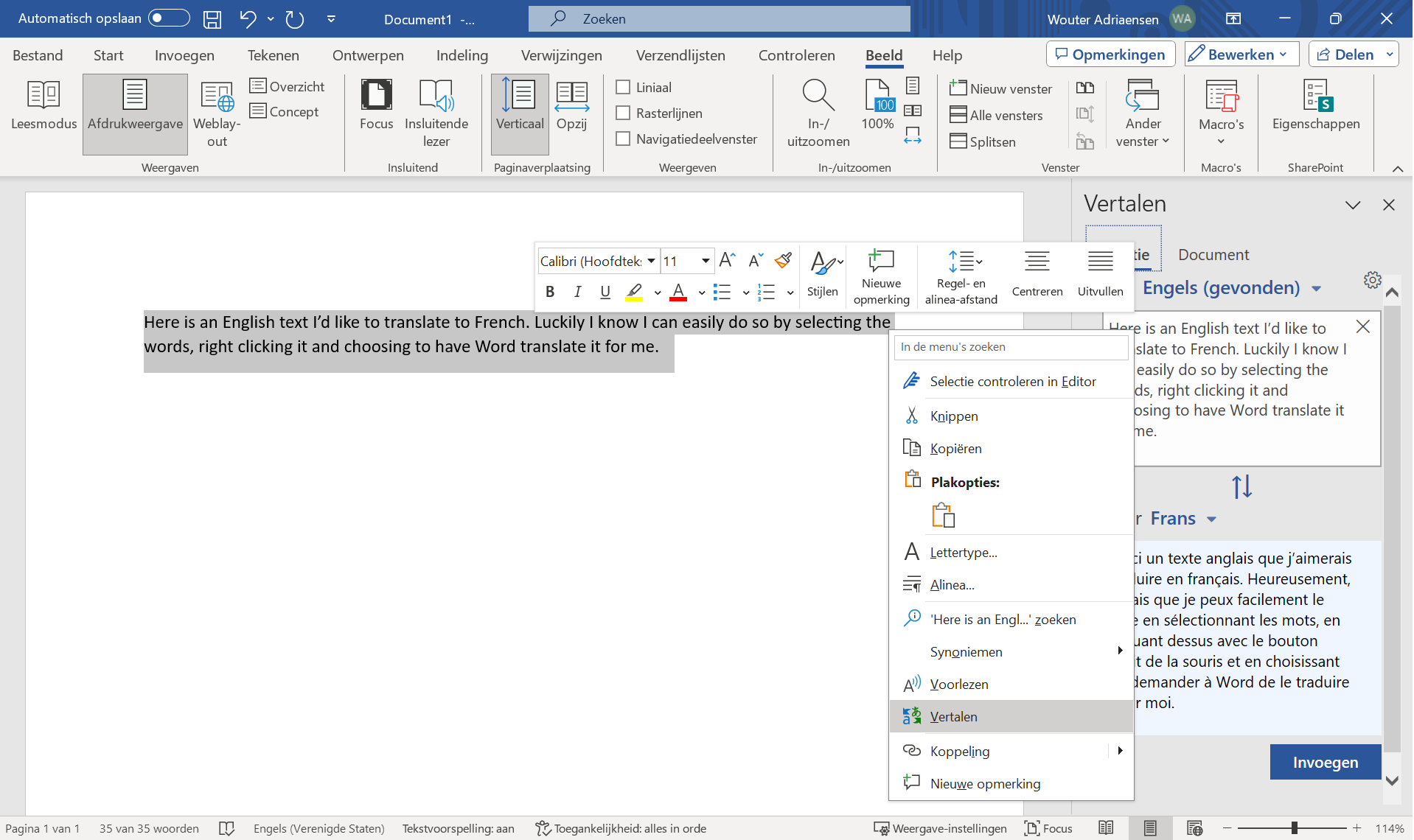
There’s another powerful tool hidden behind your right mouse button. Highlight a word, right-click, and select “Synonyms.” Word suggests alternative words, some better than others. Although the quality isn’t always top-notch, they do provide a good opportunity to think differently about words that appear frequently in your texts. By using synonyms, you keep your text varied and engaging. Plus, Google knows how to handle them, too.

Word Tip 3: Use Cyrillic characters every now and then
“What are all those weird Russian characters doing in there among your words?” One of our colleagues had clearly never heard of formatting symbols. Yet they’re incredibly useful for fixing oddly misaligned paragraphs and tables. Or for figuring out why you can’t paste an image into that pristine white document.
To display paragraph marks and other hidden formatting symbols, click “Start” in the upper-left corner, then select the “Cyrillic” checkbox in the upper-right corner of the “Paragraph” submenu. Or use the keyboard shortcut Ctrl+8 (with or without Shift, depending on your keyboard settings). This lets you see immediately how your document is formatted.
Word Tip 4: Use Your Clipboard
You scroll past a passage, read something that actually belongs somewhere else, cut that text out, look for the right passage, find something else along the way that needs to be moved, and cut that text out too. It’s not until a few minutes later that you realize your original text is gone. Back to the keyboard, then…
Fortunately, Word is smarter than that. Click “Start” in the top-left corner, and right below it, next to “Clipboard,” click the square with an arrow inside it. Your clipboard stores your last 20 copied and cut selections. Click on an item to paste it. Other options include “Paste All” or clearing your clipboard completely. This is one of those Word tips that we regret not having discovered much sooner 😅
Word Tip 5: Use Nonsense
Of course, not to share online! But “lorem ipsum” is pretty handy for experimenting with fonts and formatting. Of course, you could always Google it, copy it, and paste it. It’s much more efficient to generate your own lorem ipsum in Word. You can even do it in exactly the format you need.
To do this, simply type the prompt “=lorem(p)” or “=lorem(p,z)” into your Word document. Replace the ‘p’ and ‘z’ with numbers, where ‘p’ indicates the number of paragraphs and ‘z’ indicates the number of sentences. For example, the prompt “=lorem(5,7)” generates five paragraphs, each containing seven sentences of lorem ipsum.
Did You Know?
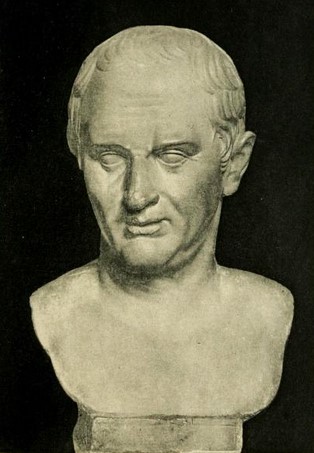
Lorem ipsum is a dummy text derived from a first-century B.C. Latin work by the famous Roman writer Marcus Tullius Cicero. The text has been used for decades by designers to test the visual layout of communications without the content being a distraction.
Word Tip 6: Use Keyboard Shortcuts
We’d rather not count how many hours we’ve already spent searching for a button in Word that turned out to be hidden in a submenu of a submenu. So it’s quite a few. You can drastically reduce that wasted time by using keyboard shortcuts.
You’re probably already familiar with some of those preprogrammed keyboard shortcuts using the Control key (Command on Mac). Ctrl+S is save, Ctrl+X is cut, Ctrl+C is copy, and Ctrl+V is paste. These keyboard shortcuts will take the quality (or at least the efficiency) of your copywriting up a notch or two.
- Ctrl+A: Select the entire contents of your document.
- Ctrl+Z: Undo your last action.
- Ctrl+E: Center-aligns your (selected) line(s) of text.
- Ctrl+R: Align your (selected) line(s) of text to the right.
- Ctrl+U: underline (from the English “underline”).
- Ctrl+I: italicize (from the English “italic”).
- Ctrl+O: Opens the dialog box to open a new file.
- Ctrl+P: Opens the print dialog box.
- Ctrl+S: Save the open document (from the English “save”).
- Ctrl+D: to change your font.
- Ctrl+F: to search for a word or phrase (from the English “find”).
- Ctrl+H: to find and replace a word or phrase.
- Ctrl+J: Justify the selected line(s) of text evenly across the width.
- Ctrl+K: Add a hyperlink (for example, an internal link).
- Ctrl+L: Aligns your (selected) line(s) of text to the left.
- Ctrl+X: Cut the selected items.
- Ctrl+C: Copy the selected items.
- Ctrl+V: Paste your selected items.
- Ctrl+B: Make text bold (from the English “bold”).
- Ctrl+N: Open a new document.
Tip
Still having trouble? Then F1 is the solution to everything. That’s the keyboard shortcut that opens the Help section.

Word Tip 7: Use your spell checker
A keyboard shortcut we haven’t revealed yet: F7. This opens the editor, which provides corrections, refinements, and insights.
Under “Corrections,” you’ll find suggestions for your spelling and grammar. Among other things, you’ll see alternatives for letter combinations not found in Word’s dictionary, as well as comments on spacing and capitalization. The “Refinements” section highlights text that could be made more concise or clearer.
Be sure to open the Insights section at the end. You’ll see how many words, characters, paragraphs, and sentences your text contains. In addition, Word calculates the averages: the number of sentences per paragraph, the number of words per sentence, and the number of characters per word. This data forms the basis for readability tests such as the Flesch-Douma formula. Based on the suggestions and the length of the document, Word also calculates an editor score.
Tip
Of course, your target audience remains more important than any formulas or metrics. Write clear, helpful content—that’s how you’ll be rewarded by your visitors and the search engines.
Thanks to these 7 Word tips, you’ll write more efficiently and improve your content. Still stuck? At Digital Climax, a team of SEO experts is here to help you. Contact us so we can assist you with your technical SEO, copywriting, and off-page SEO.