
Register My Business Profile
What is “My Business Profile”?
“My Business Profile” is a free tool from Google. Think of it as a summary of all your business information, from your address to your contact details, and from your products to photos and reviews.
This tool is an essential part of your local SEO. Setting up your business information is the first step in a well-thought-out SEO strategy.
You’ll include practical information such as your address, phone number, website link, and current hours of operation. You’ll display customer reviews via Google Reviews and photos of your store, your team, your workshop, or your materials. Registering your business with “My Business Profile” is a simple process you can do yourself. How? We’ll walk you through it step by step in this guide.
The Benefits of “My Business Profile”
1) You’ll improve your visibility on Google
If you set everything up correctly, Google will have a clearer picture of what you do, where you work, and what your service area is. This allows you to better meet your users’ needs. You’ll get more impressions and greater visual prominence.
2) Potential customers can easily find your contact information
All your business information—such as your phone number, address, and website—is clearly organized in one central location, and your users can easily click through to your website.
3) You come across as reliable and professional
A fully completed and up-to-date Google Business Profile serves as your company’s ultimate digital seal of approval. Your profile immediately inspires trust when potential customers see clear and, above all, authentic photos of your team, your store, or your completed projects.
4) The ideal place for Google reviews
Your ‘My Business Profile’ is the perfect place to collect or remove Google reviews . Let customers share their positive experience with your business by leaving stars. It provides invaluable social proof in search results.
Creating “My Business Profile”: Step-by-Step Guide
Step 1: Go to https://www.google.com/intl/nl_nl/business/
Open Google and go to https://www.google.com/intl/nl_nl/business/.
Click the blue “Get Started” button and sign in with your Google account or Gmail. If you’d like, add a phone number and a profile photo. Then enter your business name correctly and in full. The way you enter your name is how Google will display your business.

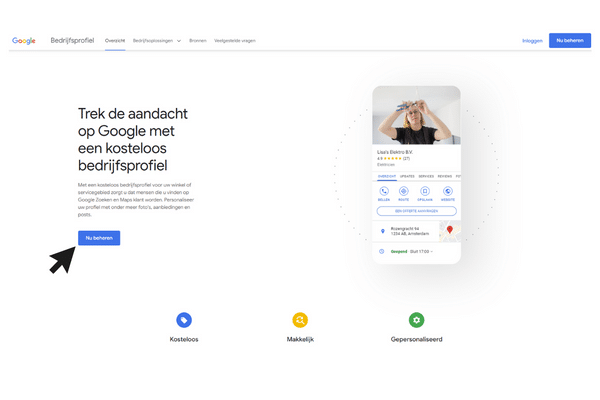
Step 2: Click “Manage Now”
Once you’ve signed in with your Google account, you’ll be taken to the platform’s home screen. Click the “Manage Now” button.
Step 3: Enter all your information correctly
Now you’ll start by entering all your business information. Take your time with this. The more specific the information, the clearer it will be to Google exactly what you do. Google will ask you for the following information:
- Name of your company
- Your business type
- Your business category
- Where you serve your customers (you can add multiple regions here)
- Your contact information (phone number and website)
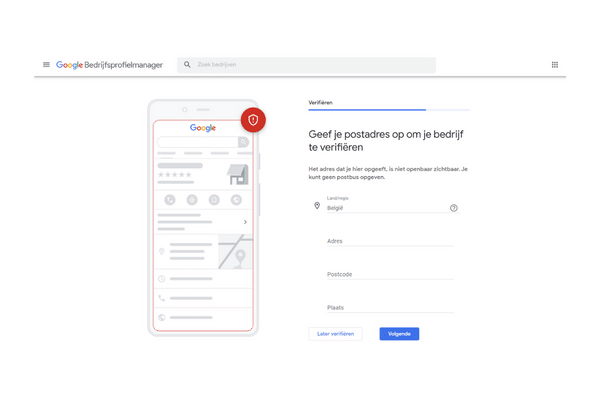
- A mailing address to verify your business
- A verification method
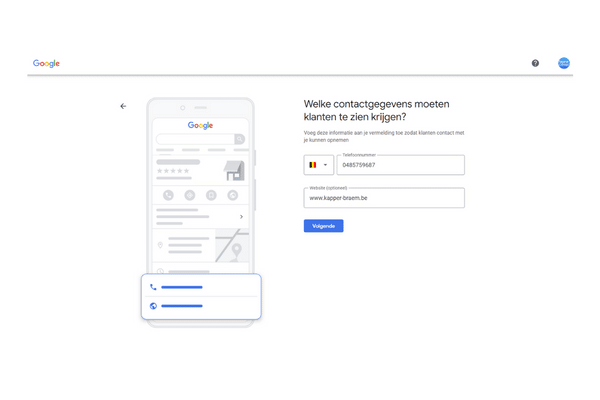
To make this a little more concrete, here is an example of the completed information:

Note: If your business is already listed on Google Maps, Google will recognize your business name and suggest it. You can then “claim” your business.
Is your business not yet listed on Google Maps? If so, you’ll need to add your business to Google first.
Step 4: Verify your identity via text message or phone call
Before your profile actually goes live on Google, the platform wants to make sure that you are the rightful owner and that your business actually exists.
Google will send you a text message or email, or call you, to provide you with a 6-digit code; this takes about 60 seconds on average. As soon as you receive the code on your phone, enter it on the screen to officially activate your business profile.
Step 5: Add your services
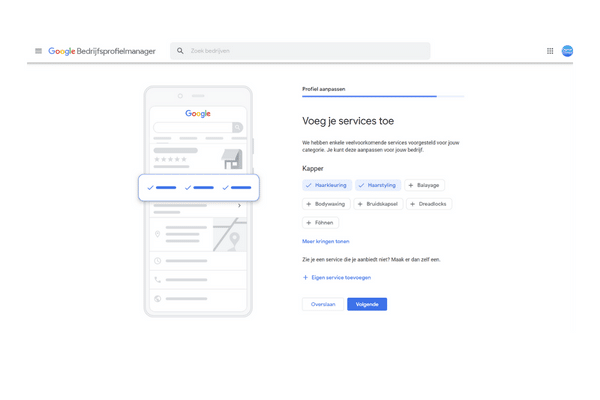
Your profile has been activated. Now it’s time to tell your potential customers what you do.
Based on the main category you selected, Google will display a list of relevant suggestions for your services. Check the boxes next to the services you offer, or click “Add your own services” to enter additional services.
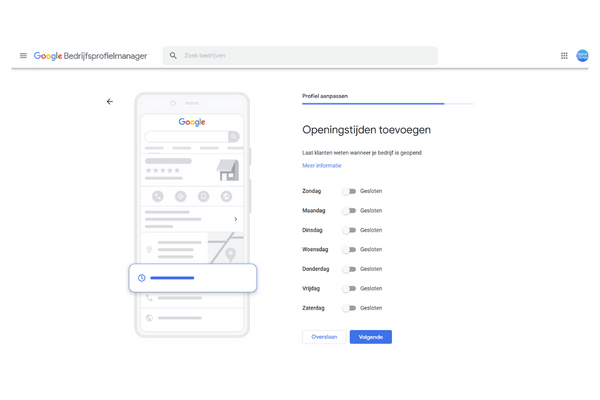
Step 6: Add your business hours
Make sure customers don’t find themselves standing in front of a closed door at your store or office. In this step, specify exactly when your business is open for each weekday and enter the correct start and end times.
Our tip: Are your business hours changing during holidays or summer break? No problem. You can easily adjust these hours via the dashboard (the Google My Business management interface) for specific dates, such as Christmas or the construction industry’s summer break. You can do this without having to permanently change your business hours.
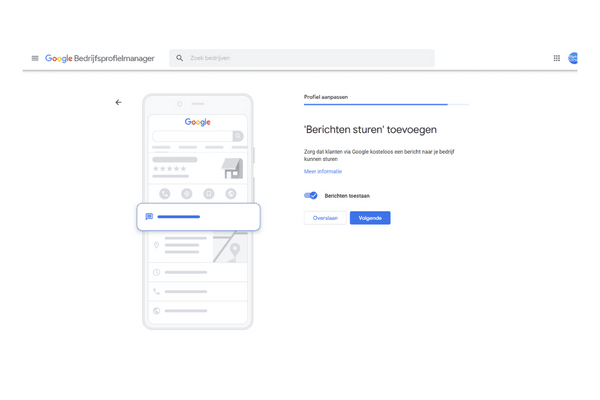
Step 7: Google will ask you if customers can send you a message through “My Business Profile”
Google asks if potential customers can send you messages directly through your business profile. When you enable this feature, a prominent “Message” button will appear next to your business listings on Google. This makes it easy for customers to ask you a question. You can also easily link a phone number, an out-of-office assistant, and a welcome message to this feature.
We recommend allowing this. This way, you create an additional way for customers to contact you without having to click through to your website.
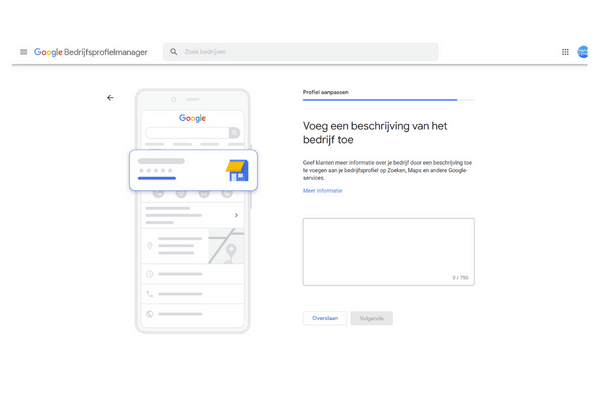
Step 8: Add a description of your business
This is your chance to stand out from your competitors. In 750 characters or fewer, tell us who you are, what you do, and why customers should choose you.
Include your main keywords and synonyms in your description. To identify them, start by conducting keyword research.
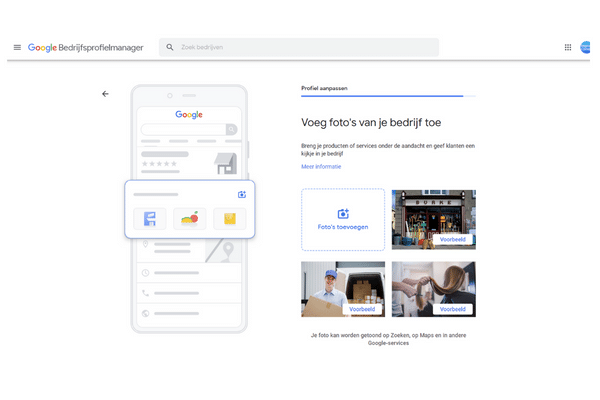
Step 9: Add photos of your business
A profile without images doesn’t inspire much confidence. In this step, you’ll add photos to give your business a face. This gives you another chance to outperform your competitors who don’t optimize their business profiles.
Be sure to include a photo of the exterior of your building or front door so that customers in the area can recognize your store or office right away. Show atmospheric photos of your showroom, workspace, or studio to create a welcoming impression. And upload photos of your products or successful projects.
Step 10: Google lets you claim ad credit
In the run-up to the final steps, Google often offers you a free advertising credit for Google Ads, for example, worth €400.

Step 11: Officially Verify Your Account
To prevent fraud, Google verifies that your business is located at the address you provided. This is done quickly and digitally via text message or phone call. These days, you can prove to Google that your business actually exists by submitting a video that is between 30 seconds and 2 minutes long and has no interruptions.
In the video , you’ll verify that the location you provided is correct. Show the street view by filming the street sign or nearby, recognizable buildings. Clearly show your house number in the video. Include any physical signage on the building, a nameplate by the doorbell, or a logo on the window. Make sure the name on the sign matches the name of your business in your Google Business Profile.
Provide evidence that your business is actively operating. Show the interior of your premises. This includes your workspace (office, showroom, or retail floor), tools or inventory, and marketing materials (business cards, brochures, or company apparel featuring your logo).
Finally, prove that you are the owner. Show that you have access to your company’s building by, for example, unlocking the front door with your key or logging in to your work computer.

Step 12: Manage your Google Business Profile dashboard
Once your Business Profile has been created and verified, you’ll gain access to the dashboard in Google search results. This dashboard is your control center.
To get the most out of your local search visibility, it’s essential to fill out this profile as completely as possible. Below, we’ll walk you through what to enter, step by step:
1) Edit Profile
- Enter your official company name here.
- Choose a relevant main category, such as “marketing agency,” and add subcategories to be more specific. Examples include “SEO agency” and “AIO agency.”
- Enter the description.
- Add your phone number, website URL, and exact address. If you don’t have a physical business address because you’re always visiting clients, set up a service area. This is also important for showing which towns and cities you offer your services in.
- Please provide your business hours. Be sure to update them during holidays or vacation periods as well.
- Keep keywords in mind and limit yourself to x characters.
- Enter the opening hours.
- Update social media profiles.

2) Edit Reviews
Customer reviews are the most powerful form of social proof and are essential for your local SEO ranking. Click this button to see all posted reviews at a glance. Respond professionally to every review, whether it’s a compliment or criticism.
Using the “Get More Reviews” button, you can create a link or QR code to share with customers—for example, in your emails. It’s the perfect way to quickly collect more reviews.

3) Photos
Images are more persuasive than text. Be sure to upload your company logo, a cover photo, and photos that capture the atmosphere of your workplace, team, and completed projects.
Add new photos regularly to show Google that your business is active. Just make sure the file name is correct on your computer. Don’t use something like “IMAGE84954”; instead, use “SEO-agency-Lille,” for example.

4) Posts
Post short news items, informative blog posts about your products or services, limited-time offers, or upcoming events here.
Write a short caption and be sure to include a call to action such as “Book Now,” “Order,” or “Learn More.” Keep your keywords in mind and post new content regularly.

5) Performance
An overview of the number of interactions users have through your Business Profile. These include calls, appointments, and directions they request. Easily filter this information by month. You can also view the number of times users click through from the SERP to your website.
Gain insight into how people discover your Company Profile. Be sure to use this as a baseline and check these metrics regularly to track progress.

6) Advertising
Use this button to set up paid ads through Google Ads. You’ll ensure your business stands out immediately with sponsored listings at the top of search results.
To do this, Google links the information from your “My Business Profile” to your ad campaign. Set your own monthly budget.

7) Edit Products
Add physical products with a high-quality photo, a clear description, the price, or specific services.
Link each product to a direct link to the appropriate page on your website. Show customers what you’re selling.

8) Edit Services
Show customers right away what services you offer. Add all your services, organize them into the appropriate categories, and include a starting price if applicable.
For each service, write a short, clear description that includes relevant keywords to improve your local SEO visibility.

9) Agreements
Depending on the business category you’ve selected—such as a hair salon, consulting firm, or medical practice—an additional “Appointments” button will appear on your dashboard. This feature is designed for service-oriented businesses.
This allows you to link directly to your online calendar so that potential customers can schedule an appointment right away without having to search through your website first.
10) Ask for reviews
Don’t wait for customers to leave a review on their own. Actively collect reviews. Click this button to find a direct, short link.
Copy it and forward it via WhatsApp, email, or your invoice to satisfied customers. With just one click, they can immediately leave a star rating.

11) Profile Thickness
In the top-right corner of the dashboard, you’ll see a circle that shows the status and completeness of your business listing. Is the circle red? If so, Google is still missing crucial information needed for your profile to perform at its best.
Click “Complete info” to view Google’s suggestions and fill in any missing information if necessary.

Step 12: Embedding Your Google Maps
Now that your profile is live, the next step is to embed the Google Maps map on your own website. This will give your local visibility a big boost. Follow these steps:
- Go to maps.google.com and type in your exact business name.
- Zoom out slightly so that the surrounding major cities or well-known landmarks are clearly visible.
- Click the “Share” button on the left side of the menu and select the “Embed a map” tab.
- Click “Copy HTML.”
- Log in to your website’s admin panel and open the contact page. Switch the page to “code view.”
- Paste the code onto the contact page of your website.
- In the pasted code, look for the “width” section and change the number between the quotation marks to 100%. This way, your map will always scale perfectly on both laptops and smartphones.
Tip: If necessary, ask your web developer or technical support staff how to correctly paste this HTML code into your site’s backend.

Step 13: Continue to optimize your “My Business Profile”
Setting up your “My Business Profile” isn’t a one-time task. Google favors active businesses. Here’s how to do it:
- Collect reviews: Ask all customers to leave a review and respond to them professionally.
- Share updates and news: Post short messages regularly, just like on social media. Think of blog posts, limited-time promotions, or a successful project.
- Upload new photos: Add new images of your team, your store, or your products from time to time.
- Update opening hours: Make sure that any changes to opening hours during holidays or vacation periods are always entered correctly into the system right away.
Register your business on Google My Business
The shortcut to the top of all search results has been officially activated. The result of your work? Maximum visual dominance on the SERP and Google Maps. That’s when the fireworks start!
From now on, not only will you be easy to find, but your business will also exude professionalism and reliability thanks to the reviews, photos, and integrated map on your website.

Need help registering your business with Google My Business?
Do you want to be found locally? Are you ready to go all out, and do you have the right SEO mindset? Then we’re a match made in heaven.
Digital Climax is an SEO agency that focuses on results. We help companies achieve better rankings on Google. Together, we’ll climb the search results step by step.
We’d be happy to review your specific case.