
Google search operators: a complete overview
What are Google Search operator commands?
The Google Search operators are special commands that expand what your Google searches can do. They let you search more precisely for specific results. You can also use the commands in Gmail, for example, and some of them even work in other search engines like Bing or Yahoo.
With operator commands you search for specific words or websites, definitions, prices, … and that makes it just a bit easier to find the right result. Super handy for your SEO, then: you search more specifically.
A handy overview of Google Search operators
The right search operators make your searches more precise, more focused and faster. No idea which commands fit your search? Use our list of search operators as your compass.
How to use Google Search operators
Using the commands is child's play. You simply type them into the Google search bar, together with the right (search) words, and combine them with other commands if you like.
For example, it can look like this:

Why use Google Search operator commands?
Simple: you find the right information on Google a lot faster.
Combining different search operators
You can combine several Google Search operator commands in one search. That lets you get very specific.
The following search, for example, combines two commands: the “quotation marks” and the site: operator. The result: all exact matches for the words between the quotation marks, and only from one specific website.

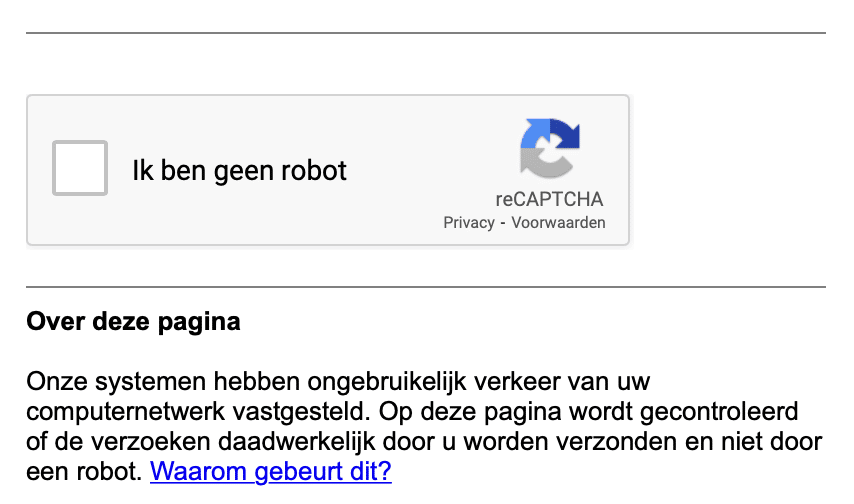
When you combine a lot of commands, Google may stop by to check that you're not a robot. Just tick “I'm not a robot” and you can carry on with your search(es).
Google Search operator commands: the list
The list of Google Search operators is long, and some commands are more useful than others. We give you an overview of all Google Search operator commands and explain what you can use them for.
Note: Some operators used to be popular but no longer work the way they did. They return results that don't quite match what the operator is meant to do.
“keyword”
Example:

Use: Shows results with an exact match. Use this operator when you want results that contain exactly the words of your search.
And
Example:

Use: AND is for when you want results that contain both keywords.
Or
Example:

Use: OR is for when you want results that contain either one keyword or the other.
–
Example:

Use: The – operator lets you exclude words or domains from the search results. Handy when, for example, you don't want to see results from a specific website.
+
Example:

Use: The + operator shows results in which a certain word always appears.
Note: this operator has become redundant, since Google automatically searches for all the words in your query.
*
Example:

Use: With this “wildcard”, Google fills in words that fit the search by itself.
~
Example:

Use: The tilde shows synonyms of a word.
Note: this operator is no longer relevant, since Google automatically searches for synonyms too.
()
Example:

Use: Groups operators and/or keywords. That way you can more or less decide in which order search results appear.
$ and €
Example:

Use: Lets you search for specific prices (in dollars and euros).
Note: this operator doesn't always give exact results.
In
Example:

Use: This operator lets you convert units.
Around(x)
Example:

Use: Shows results where the keywords appear within x words of each other in the text.
Site:
Example:

Use: Shows only results from a specific domain. You can also use it to find results from a specific country: e.g. keyword(s) site:.be
Intext:
Example:

Use: With intext: you search for results where the keyword appears in the text. So if a keyword only appears in the title or URL of the page, that result won't show up.
Allintext:
Example:

Use: With allintext: you search for results where the keywords appear in the text. So if the keywords only appear in the title or URL of the page, that result won't show up.
Intitle:
Example:

Use: With intitle: you search for results where the keyword appears in the title. So if a keyword only appears in the text or URL of the page, that result won't show up.
Allintitle:
Example:

Use: With allintitle: you search for results where the keywords appear in the title. So if the keywords only appear in the text or URL of the page, that result won't show up.
Inurl:
Example:

Use: With inurl: you search for results where the keyword appears in the URL. So if a keyword only appears in the text or title of the page, that result won't show up.
Allinurl:
Example:

Use: With allinurl: you search for results where the keywords appear in the URL. So if the keywords only appear in the text or title of the page, that result won't show up.
Inanchor:
Example:

Use: Shows results that are linked to with this specific one-word anchor text.
Allinanchor:
Example:

Use: Shows results that are linked to with this specific anchor text of several words.
Filetype:
Example:

Use: Use this operator to search for results in a specific file type, such as pdf, ppt, xls, …
Related:
Example:

Use: This command shows you websites that are related to the website you entered.
Cache:
Example: cache:digital-climax.be

Use: The cache: operator shows the most recently cached version of a web page, provided it's indexed, of course.
Define:
Example:

Use: Use this operator to look up the definition of a word.
Weather:
Example:
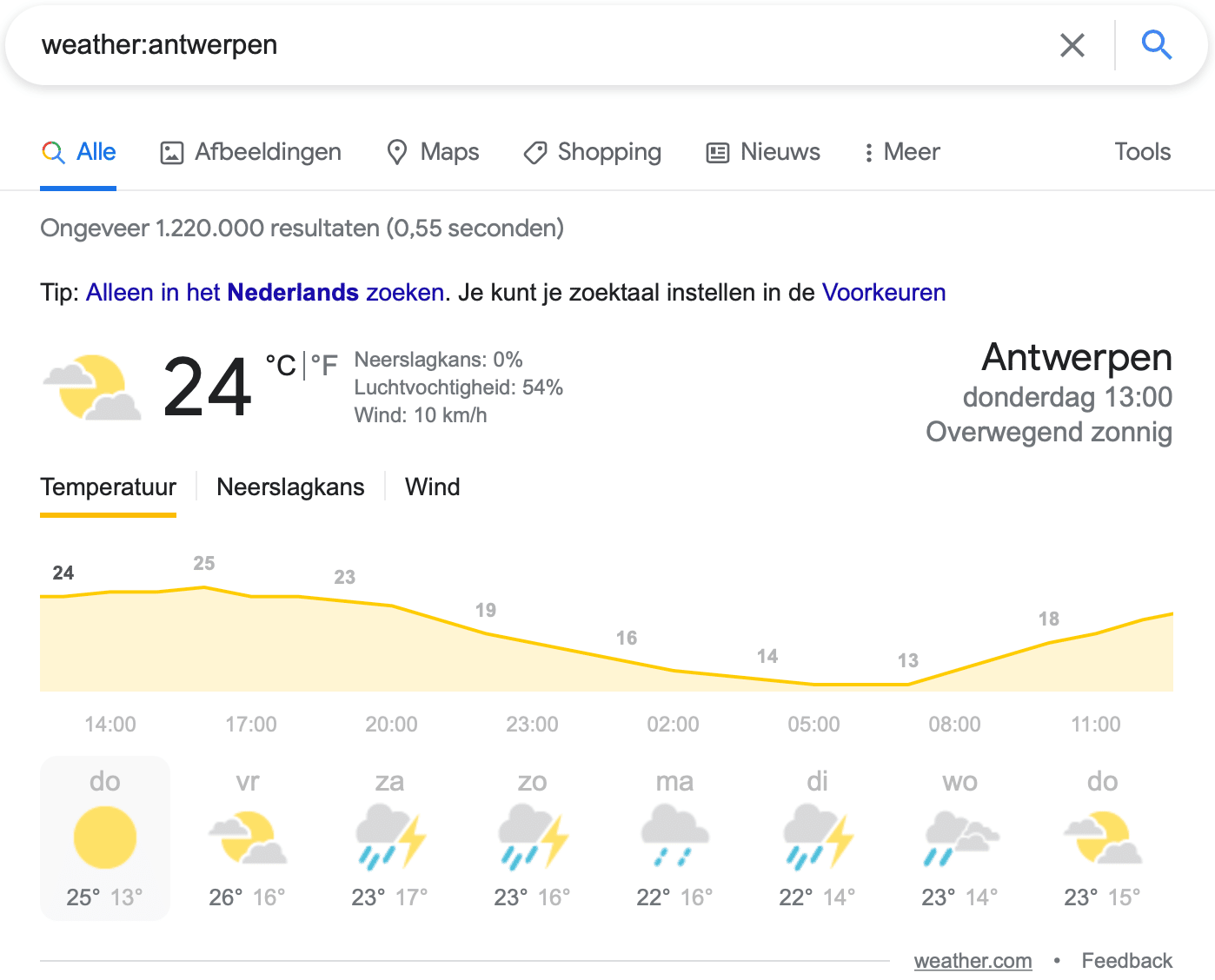
Use: Use this operator to check the weather in a specific location.
Movie:
Example:

Use: This gives you all kinds of results and information about the movie you looked up. In many cases you'll find this information without the movie: operator too, but when a movie title matches that of a book, person, event, … this operator comes in handy to search specifically for the movie.
Source:
Example:

Use: The source: operator lets you search for results from a specific (news) source.
Location:
Example:

Use: The location: operator shows results from a specific location.
Note: Google always looks for relevant results, which means results from your area. So you don't need this operator when you want local results.
Stocks:
Example:
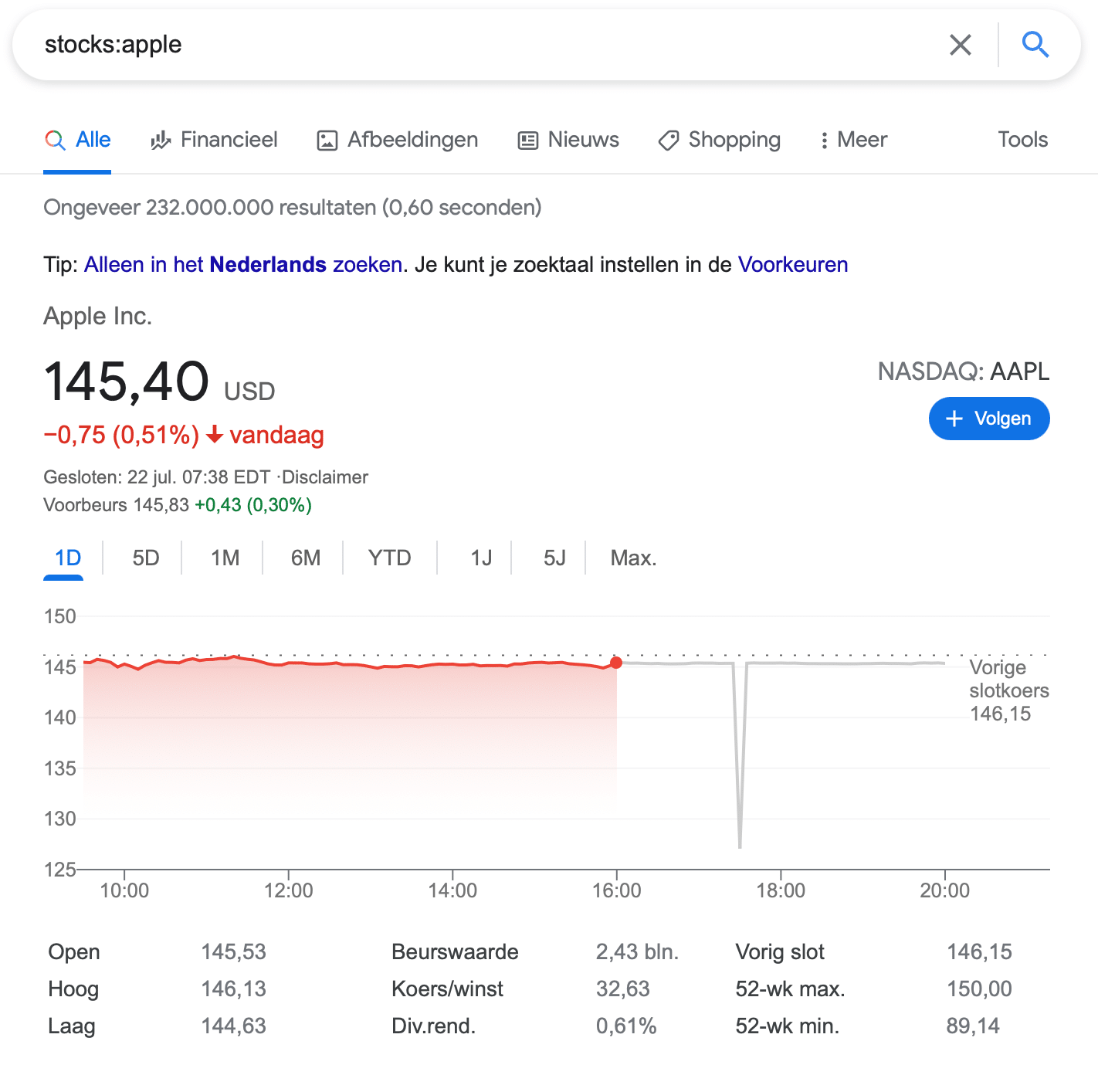
Use: This operator lets you look up information about a company's stock.
Outdated operators
Quite a few Google Search Operators no longer work, such as the + and the tilde. Here's a short overview of the other outdated operators.
| Inpostauthor:”first name last name” | Searched for blog posts written by a specific author. |
| Allinpostauthor:first name last name | Did the same as inpostauthor, but without the quotation marks. |
| Inposttitle:keyword | Searched for blog posts with specific words in the title. |
| Link:domain | Searched for pages that linked to a specific domain. |
| Info:domain | Gave information about a specific page/domain. |
| Daterange:date-date | Gave results within a specific period. |
| Phonebook: | Searched for someone's phone number. |
| # | Searched for hashtags. |
Using Google Search operators for SEO
You can use Google Search Operators for all kinds of purposes. We explain how to combine different operators to get useful SEO information out of them.
Finding pages for internal links
To find out which pages on your website could be worth linking to each other, combine the site: operator with quotation marks. Your search then looks like this: site:yourdomain.com “keyword”
Replace yourdomain.com with your own domain, obviously, and type the keyword between the quotation marks. The result: every page on your website that is (or could be) relevant to that keyword. You can often link these pages to each other.
Finding keywords in texts, titles and URLs
With different operators, you can check which texts, titles and URLs contain a certain keyword. That's useful to see whether several texts, titles or URLs contain the same keyword. It also lets you check whether your keyword appears in the text as well as in the title and the URL.
To check whether your keyword appears in the text, title and URL, use this search: intext:keyword intitle:keyword inurl:keyword site:yourdomain.com
Let's try it:
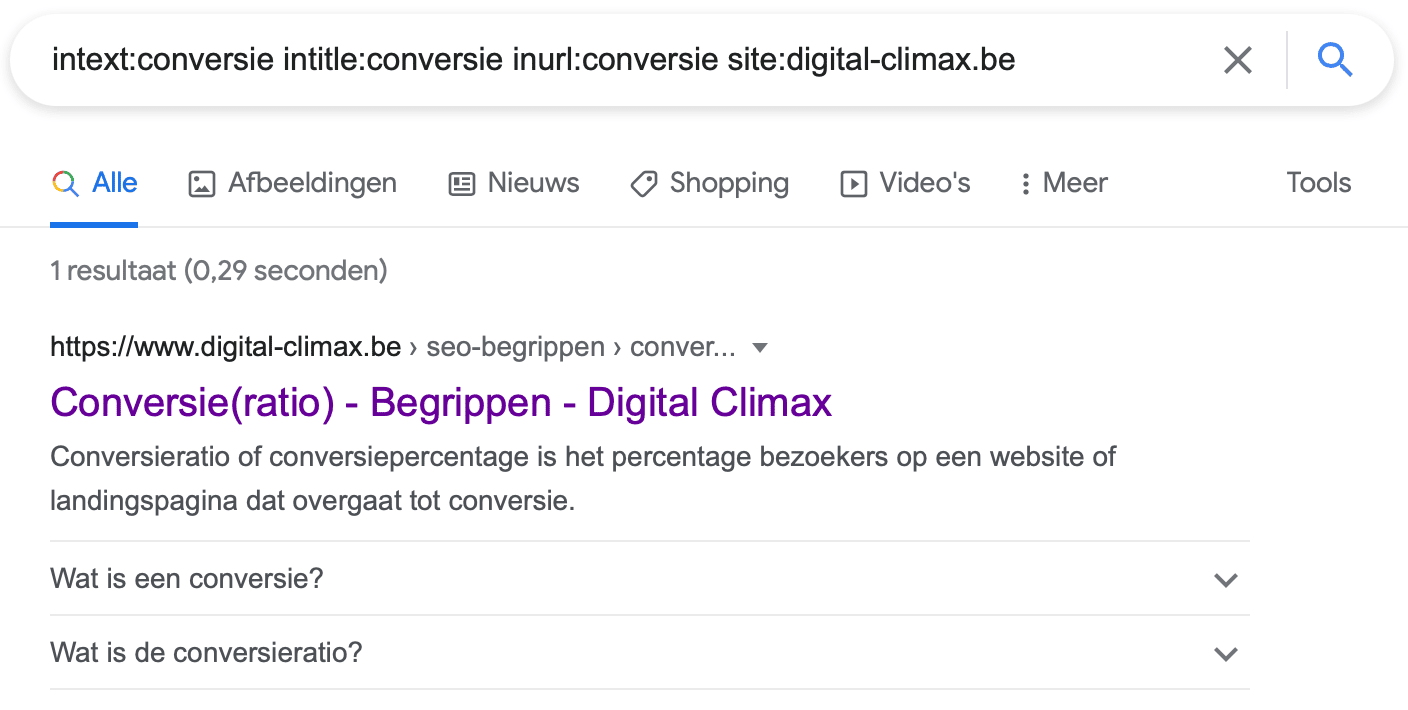
To check which texts, titles and URLs contain a certain keyword, use one of these searches (depending on what you want to check):
- Intext:keyword
- Allintext:keyword
- Intitle:keyword
- Allintitle:keyword
- Inurl:keyword
- Allinurl:keyword
Note: you can put your keyword between quotation marks (“”) to find exact matches. That sometimes gives a more accurate result.
Checking for duplicate content
You can easily track down duplicate content with Google Search Operators. Let's first look at how to find duplicate content within your own website. You do that by entering this search: site:yourdomain.com “text you want to check”. The result: every page on your website where that specific piece of text appears.
We looked up a snippet of our own copy. As you can see, this piece of text appears only once on our website:

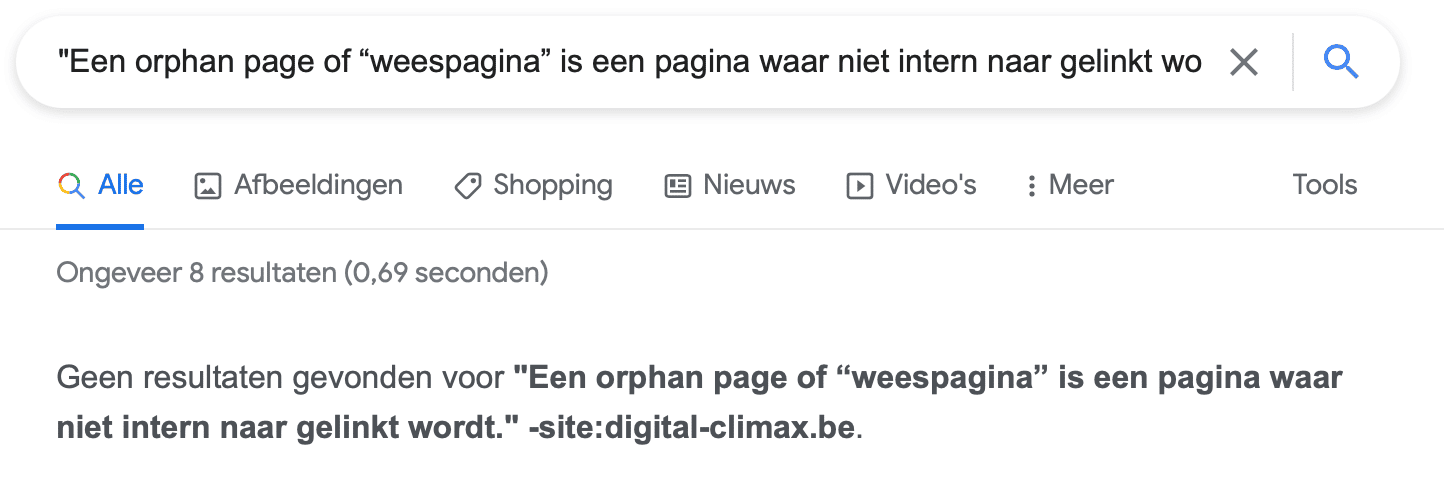
To check whether the text on your website also appears on other websites, run a different search: “text you want to check” -site:yourdomain.com
Now you see every result with that piece of text, except the ones from your own website.
We ran this search for the same piece of text as in the previous example. This was the result:
Finding out who writes about your competitors
This isn't directly linked to SEO, but it can be useful to know which websites write about your competitors.
To check who writes about your competitors, use this search: competitor domain name -site:competitordomain.com.
Search more efficiently with Google Search operators
Google's Search Operators make your online treasure hunts a lot easier. Combine them for even better results and get the most out of this clever search engine. No idea where to start? Call in our SEO agency. We're happy to help.